Throughout this project, I would be creating a haunted house. However there is a twist, I had to work in teams to create 4 rooms for the haunted house which consisted of dining room, hallway, kitchen and living room. I had chosen Jacob and Callum as team members, otherwise I would struggle on my own. We had to decide whether to create a stylized or a realistic room. Yet, the work is secondary for the project, though important, the project will test team management and how well we could organise and work as a team.
This week we had started to share ideas and set up communication along with setting deadlines to work to.
Individual
Backstory
A mysterious virus gradually kills one person at a time, taking their soul with them. Nobody really cared and passed it on as just a coincidence. Symptoms of the virus are usually mind absence and white eyes, as if they stare dead into space, then eventually every cell within the body stops and the victim suddenly drops dead on the floor. Each victim the virus claims the more curses the palace has and the screams of the dead become more noticeable. Eventually, so many people died that everyone left the building. It has been 25 years since the incident and the building is already showing signs of decay to the point where there are holes in the walls and cracks within cracks. This is accompanied by a thick coating of dust, distorting light and colour. Rumour has it, anyone who tried to enter the palace would never leave and will be trapped as a ghost, guarding the palace with the rest of the dead. Since then, the palace and the surrounding areas have been closed off from the rest of the world.
Style and Aesthetics
In this project, I will be aiming for realism in graphics. This begins by thorough research of the textures to match real life with ideally zero exceptions.
This will give the creepy aesthetic expected in haunted environments. The only exception to realism is the greyscale, referencing the amount of dust in an abandoned building. This means that everything will look bland and miserable and an unfriendly area to visitors/ trespassers.
References
Buckingham Palace and its assets with an abandonment twist. Complete with paintings and luxury assets such as golden sofas. This could be further explained in the moodboards, where I show image examples of the style I want to achieve. I use the images of real life locations and rooms that will specifically be recreated, to accurately simulate the hypothetical environment.
Having gained experience from my last project, I will be making use of Texture Haven for additional textures and backup research on top of using Substance Painter.
I have chosen realistic, and am looking forward to the challenge of trying to achieve this without the large budgets or huge teams. Realism in haunted house settings add to the fear factor. Creepy music, creaks, bangs and ominous winds would then be the perfect complement for the haunted house as it immerses you in the rooms.
Potential problems and possible solutions
The main problem of the project is struggling with achieving or fixing geometry that doesn’t waste polygons. The best solution is to make use of my previous model and hopefully use fewer faces to achieve the same look. This will be better in terms of performance as the computers I would be working with, with an exception of my laptop, are not powerful enough to render a substantial number of faces.
Another major problem is copyright, as I would need to be exceptionally careful as I am not a copyright holder. This means that to use their assets such as textures or audio, I will need to ask for permission on top of paying expensive royalties which will shoot up the price of the project. Thankfully, I have an answer to the problem with a help from royalty-free assets that I could use in the projects with conditions to not make profit, which the project is non-profit by default.
Time constraints are the most irritating constraint because we may end up cutting corners if we do not keep strictly to time, therefore missing essential parts of the project and producing poor quality work. The only solution is to work longer hours for more days at a higher intensity. In other words, make every second count. The ideal is to finish before every other team and the final deadline which then leaves enough time to check if we missed anything.
Skill base within the team
I will be doing the more difficult work as I have useful experience that will help us move forward with the project. I will be doing the main production. I could also help my fellow team members to model with good geometry at faster paces by starting from scratch and using the initial model as reference.
By combining our skills we can achieve the best results. I will be relying on my team mates and their skills in such areas as details and shadows in the concept art, which is my personal weak point and among my team mates’ strengths.
Resources required to achieve given style
I will need to get textures from Texture Haven as they have the best free textures that I can use in the project. I will also need to have a 3D modelling software, ideally Maya as I have some experience already, to create a detailed environment.
Instead of Photoshop for texturing, I will be using Substance Painter for an industry standard textures, therefore achieve realistic or good style textures in a short amount of time.
Sounds (diegetic and non-diegetic)
This project, I aim to keep the sounds simple. 1 sound per category. The gushing winds will be the only diegetic sound and the haunting music will be the only non-diegetic sound. Premiere pro will be used to combine the renders together to create a short film. However, I may insert a few odd sounds for the actions of a few assets, such as door slamming sound when it closes.
Digetic sounds are sounds that both the character and the audience can hear. For example, a car crash scene in the background followed by people rushing into the scene.
Non Digetic sounds on the other hand, are sounds that the audience can hear which the characters cannot. Such as soundtrack in the scene to enhance the cinematic experience for the audience.
List of assets I would expect to use in this project
• Table • Vases (a variety) • Cloth • Cutlery • Painting frame • Golden sofa • Golden • Wooden chopping block • Frying pan (wok) • Boiling pan • Candles • Chandeliers • Flowers • Thrones
Moodboards
Although it is a small moodboard, it gives clear indications on what type of lighting I striver for in the project, which is dim lighting from candles with natural light from outdoors.This moodboard guides me to the style and aesthetic that I will be aiming for in this project. The miserable unmaintained condition will give an immediate impression of a haunted house filled with curses.This is my prop moodboard with real world references that I will be building from from rooms to vases. I will use this as modeling references on top of individual images for the clearer image.
Refering back to my moodboards , I had done a more general theme of the moodboard, Jacob has covered the more steampunk side of the manor.
The team contract
As it reads “In considerations to the team project, each member is considered to achieve the highest standard in quality in their specified tasks. Members are to be expected to have a workstation outside of the college hours to continue working round the clock to meet tight deadlines in a satisfactory state. Each work station should have at least an internet connection to update their individual blogs, along with Autodesk Maya, Substance Painter and enough memory to store your pieces of the project. Members must hold each other accountable to enforce the deadlines in order to complete the project to a good standard days before the deadline. We are strictly not to use Photoshop for texturing or creating normal maps in favour of PBR texturing. The contract is on behalf of a client who requested a 3d environment of a haunted house. The workload will take about 5 weeks at the minimum. We aim to create 4 rooms within a team consisting of dining room, hallway, living room and kitchen, with advanced PBR shaders and 2k renders that would immerse the player into an artificial environment. This includes focusing on the small, but frank details on the minor objects such as books, or scratches to enforce the smooth flow of realism. The workload for each person stated in this contract is for the purpose of a smooth workflow to achieve standard quality by a set date. Jarath will be doing the main modelling and the texturing, as he has Maya, and substance painter at home (as a 30 day trail). He is also experienced in the modelling sector compared to other team members and is able to create an environment from scratch quickly. Jacob will be doing the preproduction with finding the assets and the haunted house we would be doing on top of finding the textures most suitable for the asset. Jacob will also be doing concept art for the rooms in our haunted house. Callum will be doing additional assets modelling to aid progress of the production itself. He would also be assigned to do the post production from adding lighting, rendering to creating a video containing all our renders. Above all, each member will do a room each, with Jarath doing 2, which totals up to 4 rooms which meets the minimum requirements of rooms per team. Members who don’t abide by the contract shall be expected to have natural consequence of overflowing work on top of being told to work overtime (extra days) to make sure the work is finished as soon as possible. We will further enforce the initial targets by not allowing them to take more responsibilities than assigned to sustain the workflow. We shall be checking on your progress by what you done so far on the day to prove whether you can be a responsible member of the team with scrum meetings occurring every Thursday at 1:30pm (not including holidays) starting from 21st November, where you are required to attend or we will give you a warning of removal. If you come across any difficulties with your progress, Thursdays will be the only days where we could help you finish the task correctly while fixing errors or finishing the remaining 10% of the work as we expect the work to be at 90% complete at the very least. The weekly blog cannot be privatised in any way. Even if it is not perfect, we need access to check your progression on the tasks which is to be perfect by each Monday. With regards to the Copyright legislations, we cannot have the exact replication of the house or use sound or textures with royalties. Therefore we will have to brainstorm original ideas with references from the group research ideas.”
concept sketches
I did a couple of concept sketches to get a better idea on what I aim to create in my project.
This is referenced from the Buckingham Palace gallery. However, it looks abandoned and the paintings look worn off. The only light source comes from the outside windows.This is the dining room of the same palace. This time, the plants are long dead and the wall shows visible cracks as no one was willing or able to maintain the building.
Group proposal
Backstory
It began with a desperate couple saving each other’s lives as the man was trapped in a weird machinery which grappled tighter and tighter onto his torso. The wife felt helpless as the machine suffocates him. Suddenly, the husband was blown to smithereens. In deep despair, his wife committed suicide to join him in death.
After the incident, the police went into the manor to investigate. It was a grave mistake – none of them left the manor alive. They fell victim to the many traps within the masonry. All of them met a violent end. That was the final investigation of the manor house as it was then closed off to the general public, with warnings to stay out and far away!
Naturally, some didn’t listen to the advice and the body count escalated over time, with one famous case of hundreds of people at once as they attempted to throw a party in the manor. The more dead bodies pile up, the bigger and more complex the machine gets, until it becomes a living organism in itself. The machines feed off the devoured souls as fuel, and emit deadly fog through the chimneys.
Style and aesthetics
In this project we aim to go for a realistic approach. Steampunk aesthetic with brass machinery entwined with abandoned architecture (complete with falling walls, cracks and moss as a secondary feature, if we achieve the modelling and texturing ahead of schedule). We aim to have a down to earth reference with our room and assets which means that the environment would be more believable. Time is a factor here and depending on our progression through the project, finer details may be added On the other hand, we wouldn’t be aiming for the smallest detail unless we had more time.
References
I take references of the many apartment environments from unreal engine 4 as a goal.
Time period
The time period for this project is to be set in modern day. However, the housing style will appear to be built in the 1800s, giving it a sense of abandonment, which is perfect for the haunted house environment.
Style
I aim to go for a realistic, high quality environment for the purpose of an immersive environment. You can see the references from the photorealistic apartments created from Unreal Engine 4. However, there is a steampunk twist – the whole house is alive with machines
General look of the environment
The general look takes inspiration from Bioshock and Silent Hill, mainly with real life references with abandoned buildings and Victorian aesthetic. As mentioned many times, we aim to achieve a realistic style of the 3d environment complete with imperfections and references which will enhance the realism as well as integrating the assets into the intended environment being directed. I had specifically picked out Bioshock and Silent Hill as they were other media (video game) references that I would be using for this project.
These are the sounds we aim to use in our rendered video, which includes diegetic and non diegetic sounds.
On top of using Substance Painter for texturing, I will be going to Texture haven for additional textures for backup research in order to avoid the challenges I faced in the last project.
Realism is a large part of the ‘haunted’ experience. In order to grab people’s attention you need them to feel they are in the environment.
Potential problems and solutions
The main problem of the project is struggling with achieving or fixing geometry that doesn’t waste polygons. The best solution is to make use my previous model to attempt to use fewer faces to achieve the same look. This will be better in terms of performance as the computers I would be working with, with an exception of my laptop, are not powerful enough to render hundreds of thousands of faces.
Another major problem is copyright, as we would need to be exceptionally careful as I am not a copyright holder. This means to use their assets such as textures or audio, I would need to ask for permission on top of paying expensive royalties which would shoot up the price of the project. My solution is to make full use of royalty-free assets that I could use in the projects, accepting the conditions to not make profit. Since the project is non-profit by default this would not be an issue.
Time constraints are the most problematic because of the fear of cutting corners in order to meet deadlines, therefore missing essential parts of the project and producing poor quality work. The only solution is to work longer hours for more days at a higher intensity. In other words, make every second count. The ideal is to finish far enough in advance of the deadline to be able to dedicate enough time for a full runthrough and to check if we missed out on anything.
Skill base within the team
Jacob is the main contributor of the group pre-production as he has a plethora of ideas based on abandonment and steampunk which is an interesting twist for a haunted house. He also produced quality concept art that we can root from. He will do one room, the hallway.
Jarath will be doing the modelling and texturing of 2 rooms and the other team members will have 1 room to model and texture each. This is because he has experience with modelling and texturing as well as enjoying the process first hand. He will be assigned the creation of the reception/dining room and the kitchen.
Callum’s main focus will be post production. He will be creating a short film containing all our renders and batch renders along with audio and special effects. He has experience with special effects and can render with phenomenal quality lighting and angles, which will improve the quality of the work overall, as we would prove to create great renders. Callum will also do the living room
This totals up to 4 rooms (1,2,1 from each member).
Resources needed to achieve a style
I will need to get textures from Texture Haven as they have the best free textures that I can use in the project. I will also need to have a 3D modelling software, ideally Maya as I have some experience already, to create a detailed environment.
Instead of Photoshop for texturing, I will be using Substance Painter for industry standard textures, therefore achieving realistic or good style textures in a short amount of time. This project is focused on PBR (Physically Based Rendering) textures which can be achieved easier and quicker on Substance painter, on top of learning new software that are considered industry standard.
Weekly blog (c.25/11/2019)
Zero Hour Team briefing Key points:
Due to the unfortunate but understandable absence of Callum Bowler he was not present for this first briefing
Jarath and Jacob have agreed a set of tasks, between ourselves we have split the tasks up almost evenly. With Jarath’s skills in 3D modelling he has decided that he will do 2 rooms whereas Jacob and Callum will do 1 each. This brings the total up to 4 rooms.
Reflection on Last week (Project week 1) Key Points:
We got off to a great start, with all team members completing a mood-board and having a general theme being agreed on. This theme is that of a steampunk mansion filled with evil machines. We came up with a backstory, called Winston manor.
Jarath did a lot of the work during this first phase with contribution of backstory and concept from Jacob, Callums contributions as of right now are unknown as we cannot access his blog without him being present.
Plans for this week:
Complete assets lists for all 4 rooms ideally to be completed by the people doing the rooms, date for completion ASAP.
Finally signing and submission of team contract.
Jacob to rewrite his blog to the same standards and length as that of his teammates.
I was assigned to create the reception room and the kitchen, based on the references.
I had officially surrendered as “team leader” as there was no such role allowed in the group project, as everyone is expected to have equal contributions to the entire haunted house.
Updated asset list
Kitchen • Oven • Frying pan • Sauce pan • Boiling pan • Cloth • Plates and broken plate segments • Trays • Cupboards • Spatula • Ladle • Bookshelf
I had invited my team members onto my Trello board, along with assigning them with individual tasks. Unfortunately, we are behind schedule which means that we have to catch up with intensive crunching. However, we have written the backstory and gathered research.We created a shared Google drive with my other team members to submit their progress and create scrum notes.This week, I added in a basic production schedule that we would be following. It covers what stage we should be at each week.
Concept sketches for my rooms
This is a basic concept sketch on how I would like the dining room to be.This is the concept sketch of the kitchen I plan to model. The concept sketch was only outlined due to time constraints.
Updated Moodboards
This is the moodboard of the kitchen itself to specify what environmentI envision. Some of the images, were references to the concept sketches.This is all the asset reference I would use in the kitchen, compressed into a moodboard.This is the dining room moodboard, annotated. One image was used as reference for my concept sketch for the dining room (the centre one).Here are my prop references I will use in my dining room, compressed onto a moodboard.
Modeling
This week, I had begun the production process, starting with blocking out the assets.
I set a project directory onto my haunted house file as I will be expected to set projects with every Maya project. I gave it a simple name and clicked accept, without changing the names of the subfolders.Already I had started to block out one of each asset that I am going to model within the project. Using the references from images and my concept sketches, I was able to be direct on what scene I want to envision for my rooms. However, these are only block-outs which means that there isn’t much quality to the models themselves, yet it is the foundation on what model goes where in the final version.
Weekly blog (c.02/12/2019)
Zero Hour Team briefing
Key points:
As of the beginning of this week, our team is complete with Callum having arrived in the middle of last week and he has caught up with Jarath and Jacob. With all 3 of us being now at the same stage, we can move on to the production itself. At this stage we now need to begin to gather images to use to model from as one of the criteria of the project that we have to create our models from reference images. We will also have to show proof of this but that will be relatively easy to do. Blocking out for all stages has been completed.
Plans for this week:
Acquire reference images and begin modeling assets from them
Team communication
We had updated our Trello page to keep up to the tasks we’re currently doing.
I have modified the contract to a more reasonable and relaxed agreement in order to protect our good working relationship and to create a close team. Additionally, the scrum meetings are shifted to Mondays.
Modeling
This week, I produced the models with image reference in both rooms.
I began the process by inserting a handful of images for reference for each prop. Then I began the modeling for the most straightforward first, which happened to be the cupboard. The extrude tool was used, along with extending the vertex to achieve the basic look.I was unable to solve the complex issues of the cupboard which involves the arch. Resolving to return to this after some thought, I progressed to modeling a drawer for the dining room using my reference images.Four versions of the leg were created, with the purpose of making the most accurate reference possible.Using the reference images, I tried creating a candle model from the cylinder, using the extrude tool and expanding faces.The additional parts were modeled from separate shape models (cylinder tool) to keep the process consistent and easy without the unnecessary polys from if I were to extrude it.With references to the 2nd image of a plate I began the process via the cylinder tool to then flatten out and create additional circles by extruding the center vertex. As soon as I achieved the rough plate shape, I only beveled the outer ring to smooth out the rough edges.Here I began creating cutlery from references for the first time. Initially I created the fork and knife using the thicker handles, only to realise that there was no spoon. I returned to the other reference image that I gathered to model the spoon on top of duplicating the fork and knife with a thinner handle to match with the spoon and the reference image.This time, I had opened up the image of a dining room itself to get reference from one of the door frames, based on my concept sketches. The process was straightforward. I began by creating edge loops while I was blocking out, to then patch up the hole using the append to polygon tool, which will eventually lead to extruding the top both sides.I created a cylindrical shape followed by more edge loops to block out the shape of the wine glass before beveling the edges. I also achieved the bottom by extruding twice, one to spread out and one to stabilise.I decided to start over the cupboard modeling, starting by creating the cylinder top then to the rectangular shape. The reference image and the model stood side by side, to easily recreate the original shape. Next, I had extruded the selected faces inwards to appear as a window and the bottom cabinet, based on the real life reference. Afterwards, I deleted one side to achieve perfect symmetry……to be met with the mirror tool at the X axis with a negative mirror direction while focusing the position on the object itself. This automatically completed the second half of the process for me, rather than extruding endlessly with lesser quality and symmetry.I started the table process by creating the corner leg, complete with all the bumps and rings. On top of that, I had also created additional models to recreate the more complex shapes, if they were to be all one model. The corners were then beveled out to create a smoother shape, therefore more realistic.The next step was to create a cylinder tool to replicate the middle part of the table that connects both sides. I created several edge loops to block out the shapes, with the next step being to extrude or shrink down the existing edges in an attempt to use the polygons more effectively.I then create a center stool, based on the reference image. This was achieved by creating edge loops to then align them to positions where they would be in real life. I expanded one loop to then maintain the shape by adding another edge loop to curb the over-dragging size slope.Finally, I added a cylinder shape, to then create more edge loops to replicate from the reference as a bottom corner bridge or stabilizer.To finish the process off, the table itself was added. I had to extrude from the top to achieve the slope at the top edges before beveling everything else, which produce this result. All this is based on a real reference.This was one of the most difficult tasks in the modeling process, especially at the top curve. This was based on the fact that the mirror starts off square and ends with a circular top. To circumvent all of this, I utilised a process called “duplicate ’til done” which involves duplicating the model every so often in case I have to revert to a previous step for the purpose of correction. I then began the process step by step from creating 2 edge loops per axis to then extrude the center inwards to create a mirror appearance. Next, I extrude the faces from the top and outward. The extrude process was repeated, this time the middle edge was position higher than both sides to begin the process of creating the decorative curve of the top. The process involved creating the edge loops manually to only go to the top center vertex to achieve the style of the cylinder shape at the edge. The process is achieved by starting the multi-cut tool from one end to the center vertex to the other. The edges of the whole mirror were eventually beveled out.Using the reference image, I carefully crafted a shape of the eagle using the extrude tool and readjusting the position of the edges and vertices to accurately recreate the wings and the head.Using the cylinder shape and the reference image for the mirror, I created a flower shape simply by joining each face per 2 faces to become closer to the core. Then I extrude the centre circle with a slight offset to bump up the shape to appear more as a flower centre from the reference image. Next I adjusted the faces to appear more of a rough flower petals before beveling the shape.Follow up to restructuring the cupboard with a full arch on top, the back was bridged with polygons using the Append to Polygon tool. The tool involved selecting one face to the other to create a new face to till in the gap, such as one on the left. I began the process by starting with the straight ones at the back because they were the easiest and to finish with the angled faces and the one connecting to the cylinder part. However, there were ngons created throughout the process, nevertheless I resolved that issue via the multi-cut tool to split the faces into two by linking one vertex to the other.Finally moving to the edges of the doors using the reference image from the room itself that I aspire to replicate. The process wasn’t that much of a jump from the blockout. The only difference being that I just had to extrude the edges outward. I began the process by appeding to polygon to fill in the holes from the blocking out process, which was visible in the inward section of the pillars. Next, I selected both faces at one end and extruded them both outwards using the resize tool for consistency. Finally, to achieve the carved pattern I extrude once to shrink the face to create the smaller faces. Afterwards, after the faces are extruded inwards to create the layout of the pattern, I extrude again to push the gaps inward to achieve the pattern shape based on the reference image.This is the moment I had discovered the power of the smooth tool to quickly smooth out the edges, rather than taking a long time to achieve a similar shape. However, it did create ngons in the process as I only selected the legs of the teapot. The issue was resolved not by inserting edge loops as it would create an unnecessary amount of faces, but by connecting one face from the edge with no connection to the corner to remove the ngon.I created the teapot, based on the reference image. The process started with a spherical shape followed by extruding 4 faces to one side outwards (2 each) then extrude again for the bridge tool. The curve was achieved by creating an edge loop within the newly created bridge to move inward and repeating the process created the edge loop and then move the entire loop to a certain position to achieve an exact position to match the reference photo. Afterwards I extruded the top and the bottom to create the desired shape then finished it off using the smooth tool on the handles, the legs and the spout. I have decided to create another one to smooth to check what it would look like. Although it gives significant results, it created unnecessary faces, therefore affecting performance.The candle was more difficult to recreate the model, compared to the previous models. I began the process with the foundation blocks, which means I started with the easiest part which was the main body itself with assistance with the extrude tool and inserting 2 edge loops at the same time (which could be found in the box next to the tool name itself). I managed to achieve the general shape of the patterns by extruding the faces outward in the position based on the reference image. I found the original handle unnecessarily complicated and chose to replace with the “CL” shape to represent a Victorian style handle.Afterwards, I had the motivation to jump to model the chair, which is a difficult process especially when it comes to the curvature and consistency. However, the challenge was met via a chain of simple steps. First I inserted the cube shape and resized it to a flat rectangle, only to be followed by 2 edge loops in each axis of the shape for the purpose of laying out where the legs would be extruded from. Then I extrude the back while selecting 3 aligned faces and extrude again to block out a hole in the back. The faces were then recovered by append to polygon tool to fill in the holes created when I removed the faces. Only then, I would be able to create yet another edge loop. To create the cushion, I had to extrude the centre face only by an inch to match the reference image. I had clicked on the object itself and used the smooth tool to achieve this look. Overall, it accelerated the progress to smooth out the edges as well as achieving the circle top.From the block-out, I had continued modeling the fireplace in more detail while using the reference image . It began with creating edge loops down the middle and extruding to create smaller faces. This was then met with extruding from the top expansively, as well as inward to represent the fireplace itself.The stool stabilizer was created from the sphere (from polygon primitives). The next step was to extrude the faces outward to connect the end of the chair leg. Afterwards, I had used the smooth tool to then connect the vertex to erase the ngons.
Weekly blog (09/12/2019)
Week Commencing 9/12/2019
Zero Hour Team briefing Key points:
This week has produced a disappointing result, as we were meant to finish the modeling last week (especially Jarath). However, we had recreated the plan, based on the example given by the Classroom, involving weekly breakdown and daily breakdown of tasks within each week, which is still in development, due to the small amount of missing evidence of team management and communication (lack of daily schedule).
From this week onwards, we shall completing our modeling in full and then once everyone is at the same stage. starting to unwrap and texture our assets, ready to be rendered. We shall also become familiar with using Substance Painter for the coming weeks starting from today.
Jarath shall be finishing up the modeling and organizing the models in their place (without duplicating) for unwrapping UVs. Jarath must then duplicate the models to complete the whole model, if there are more than one parts. Jacob shall catch up with his modeling work to ensure that he will be ready for texturing by this week. Callum shall finish unwrapping his models and will be texturing using substance painter.
Team communication
This is the trello page of my progress of this week.This was a minor communication on Discord to ask for assets list from other team mates to complete the redesigned plan, which is still in development.
Modeling and Unwrapping
This week, I am crunching the hours to catch up so that I can finish the modeling and unwrapping as soon as possible as it began to take far too long to complete.
I used the (Create>NURBS primitive>circle) NURBS circle as the base and the EP Curve tool (accessed from Create> Curve tools> EP Curve Tool) to create a chandelier pipe, based from the reference image that is visible below. After I had selected the vector shapes in circle, EP Curve order, I go to Surfaces> the box next to extrude to select the polygons option from NURBS default and to have quad faces. I modified the number of polys in the attributes with a purpose of smoothing out rough edges. Eventually, I settled with the U number 19 and V number 41.After the basic shape was created, I extruded select amount of faces to spout as a leaf shape, based on the reference image. This is only supplemented through moving the centre edge forward to enhance the leaf shape. After the leaf shape was implemented in all of the extruded shapes. I used the smooth tool to smooth out the rough edges.This is the final result of the process of inserting leaves. I also removed the engons by the multi cut tool to connect the ngon vertex to a corner vertex to curb the issue.The dining room is finally finished in terms of basic modeling.I move on to the kitchen with a simple start to the process. It began with elongating a cube to a thin rectangle and then beveling the edges only.Now that the foundation of the chandelier is complete, I will tell you how I achieved it. The process was started with a cylinder to block out the main body. Next I created 2 of each of the several edge loops to only then extrude outward whenever there is a bump. Finally, I used the bevel tool around the centre of the extruded shape to smooth out the edges. The chain itself was created by editing a torus shape from the polygons primitive to have only 6 axis divisions and around 20 cap divisions to achieve the smooth shape. However, the top part of the chandelier is more complex in comparisonWith continuation of the wooden shelf, I created the stabilizer that holds the shelf in place. I began the process by flattening the cube into a rectangle to then extrude to create a smaller face within a face and to extrude that outwards. The curve shape was achieved by inserting 3 edge loops to teak their positions based on the reference which was to have a slope from top down. The final step of modeling is to smooth out the rough edges. I had bevel the main edges, as well as using the smooth tool for the curve itself. The ngons appeared after the select faces were smoothed. The problem has since been resolved by pointing vertices with the multi-cut tool. Therefore, the top wooden shelf would look more believable compared to just a plank in a wall.I created a boiling pot with the lid closed. I mainly extrude from the top to create the shape of the lid itself. This was then followed by extruding 2 faces each side from the top of the lid twice, to then be bridged and sloped via the edge loop. For the handle, I extruded 2 faces twice to bridge the gap (with the bridge tool). The lid and the handle was selected and used the smooth tool to cut out the rough edges, while the ngons were cut in half (triangulated) via the multi cut tool.This time I created a boiling pan without the lid with inspiration from the reference image of the prop itself. This is the same process as the one with the lid, except I only needed to create and smooth out the handle.The reference image for the sauce pan was slightly trickier comapred to the other reference images, yet it is visible enough to model from.The tray was based from the thin rectagle from a cube which was flattened and stretched.The process of creating the frying pan started out simple. I used the cylinder shape to shrink the radius of the bottom part to give a bowl shape.Using the same method I used in the chandelier, I created the main body of the broom based on the reference image, where I insert edge loops to then extrude outward to create circle bumps. For the brush itself. It was created as a separate object to keep it simple as it was a horizontal direction compared to the main body vertical direction. I had achieved the consistency by adding 2 edge loops at each side and moved them to an assigned place by resizing in the z axis to move both edge loops outward. After I reshaped the brush vertical part. I extrude south and outward to achieve the shape of the brush itself.What I created was the oven, and the image is the reference. I started on the oven itself. This is done by extruding to create a smaller face on one side of a flat rectangle to only extrude again upwards. Next, 2 edge loops were inserted with an even gap, which was helpful by extruding upwards again with a slope both sides as the middle was highest. 2 new edge loops were created across at the centre horizontally, which I then extrude outward to create a bridge between top and bottom door. Speaking of doors, I extruded both faces between the bridge outward to stand them out from the rest of the oven body. To achieve to top hat look, I looked to extruding from the top to only flip outward and extrude again to finalize the top. Which leads to the final stage of inserting legs which was a simple process as I only selected 4 faces at the bottom and extrude to only then edge loop to create a curve. The hoop was from the pipe shape, to extrude from one face downward and to extrude again outward to create thickness or the illision of decoration.The grand finale of the oven modeling process is to use a smooth tool on the bottom panel and the legs as well as beveling out any of the rough edges. I solved all the ngons created throughout the process using the multi-cut tool. Why would I do this, you wonder? It is because it makes the oven look more realistic with smoother edges, which means that people would believe that it is an oven rather than random blocks topped on each other.Using the same method of plate creation as I did for the dining room. However this time is different, as I cut in half then duplicate to half again, until I get a simplified broken plate pieces. To cover the holes created by halfing the shape, I used the append to polygon tool to fill the holes by clicking on 2 edges.I start with the block stating by extruding outward from the top. Next I insert several edge loops in certain positions to map out where to bevel and where to extrude. This also included the edge loop down the centre to be used use the exturde tool to create faces within faces to extrude outward for additional depth. The same applied to the smaller bottom drawers. This all comes from the reference image as I attempt to create a realistic environment.For the door handle, I had simply copied and pasted the handle from the drawer in dining room, with a purpose of assigning a separate texture. This proved to be the most effective way to bring a similar object to another asset as it were more time effective. The keys were surprisingly easy, as it only involved extruding and shrinking face from top to create the slope. This was then followed by clicking on the centre vertex to extrude which would create a new set of ring. The vertices were organised into a key shape and then extruded inwards.I began the spatula shape by elongating the cube and then extruding outward to appear as though the spatula is curving inward to the handle, where the opposite is happening. I extrude again to keep the consistency of the curve while sticking to the reference image. The next stage was to insert an edge loop down the centre in purpose to slope up the top to achieve the round curvature of the spatula, based on the original reference. The final task was to bevel the entire shape to smooth out the rough edges to appear more realistic, rather than blocky.The chopping board was rather simple as it only needed resizing and beveling the edge faces thinly to achieve the shape from the reference image.This is the plate with a different shape. The process was simple. I selected the centre vertex and used the extrude tool to create another set of circles which will all be extruded downwards and slightly shrunk to map out the plate look. The next stage will be different as I removed the edge of the outer rim to roughen up the outer plate to look like the one from the reference image. This however created ngons, which was then resolved by rejoining the edges by the multi cut tool. I smoothened out the rough edges by beveling only the outer rims to appear more of a plate.This is a model of a rolling pin, based on the image reference. The process began with the cylinder shape, which is then extruded in both ways using the expand tool for consistancy. The process was then ended by the bevel tool on the handles and the edges.This kettle was harder to model compared to the other models. It began with a cylinder tool being cut to pieces with edge loops to then extrude and bevel the center circle. for the stem where the drink is pored from, the shape was extruded from one shape, eventually leading to an S shape with a hole. The top was crafted via extrusion to match the reference image. Finally, the handle itself was made by extruding 2 faces on the opposite side of each other to then curve in and out using the expand tool, which would eventually be bridged together by the bridge tool. The curves were met with the smooth tool to smooth out the rough edges to appear more realistic.This is the ladle. I began the process by altering the cylinder shape by narrowing the height as well as moving both faces in the y axis downwards to create a spoon shape. This was then followed by extruding 3 faces on one side and then one for the handle, which was then extruded again outward for the creation of the thick part of the handle. All this would create a ladle shape, from the reference image.I started the bow shape by cutting the sphere in half by flattening the top to appear as a half-sphere. Next, the flattened half was sloped down in the same direction of the bottom half except one rim of the circle which would later be extruded upwards to create depth based on the reference image. only the outer rim of the bowl top needed to be beveled as the rest of the shape was smooth by default.I started building the vase shape by extruding the cylinder tool enough times as well as shrinking the edges to achieve the same curvature as the reference image. For the handle I extruded the thin edges to then bridge the 2 faces together per side. The grande finale of the process was to bevel out the edges and used the smooth tool for the handles, on top of using the multi-cut tool to cover up the ngons, until there were none left.I start by extruding certain faces from the sphere to block out the shape. The handles were then bridged together via the bridge tool. The legs were extruded out and then another edge loop was created in the centre for curvature, on top of shrinking the bottom face to smooth out later.The reference image of the kitchen table is the same as the top wooden shelf. It is an image of a Victorian style kitchen including the table, which I would model from. For starters, I created a rectangle shape which was to represent the shape of the table itself, only to be followed by 4 edge loops on each side to create corners to extrude downwards from. I had selected the 4 faces and extruded them at the same time for consistency. Next I extruded the sides of the faces outward for thickness to then be beveled to smooth out the edges. I also beveled the legs, including the bottom for the same purpose.For the cloth, it was only a matter of the shape and creating a peak, demonstrated in this photo.This is the main shelf on which to store rest of the pans. I started by elongating the cube into a rectangle shape then inserting the edge loop in the centre and then extruding without connecting edges. This is followed by extruding inwards to create the shape itself. The final step of the process is to select the outer faces and use the bevel tool to smooth out the rough edges for additional realism.I now officially begin the unwrapping process (UV) strongly as I began with the dining table itself. The task was simple, I had to select the faces that is facing one direction to then insert a planar map in the x or z axis depending where it’s facing and the vertical faces with the Y axis. The only challenge was to stretch out the smaller faces to keep the square consistency. However, I had circumvented the issue by selecting the faces and moving them in the UV editor or resize them.This is the centre leg of the dining table. I began using the cylindrical tool to the greater advantage of simplicity. The only times I had used the planar map was the top and bottom faces. I also used the spherical tool for the smaller,beveled bumps. I then used the layout tool and shrunk a few faces, as well as restricting myself to one island for texel consistancy.This is the top decoration of the chair leg. I began to apply the y axis planar map on the top and bottom flat surface. However, the main attraction is using the cylindrical tool of the rest of the asset (all of the remaining faces selected) and stretched out, which skips the process of fiddling.This is the side leg bridge to the centre. I only used the planar mapping in all axis to fully UV. Next, I used the layout tool to shift around the map to prevent overlapping. This was an easy asset to unwrap compared to others.This is the side bridge of the dining table,one of the more difficult props to unwrap, yet simple nonetheless. I began the process by using the cylindrical tool on the cylinder shapes themselves. The difference is that the cylindrical shape is faces in the horizontal axis. Therefore I had to adapt the cylindrical mapping to rotate to horizontal to achieve the flat UV map. The squished UV faces were then expanded in the UV editor as well as the ones between had shifted. The only step left was to planar map the flat faces in the x axis.This is the centre bridge for the dining table. I had used the same technique as the side bridge to change the cylindrical mapping to face horizontally and the planar map to cover the flat faces.This is the centre leg of the dining table. For the beveled bumps I used the spherical map as it worked best for consistancy. For the flat faces, I used the planar maps (for example, the top and bottom faces). This is on top of using the cylindrical tool, which was the main asset, as it is a cylindrical shape in general.This is the teapot from the dining room. In my opinion, this is one of the most difficult assets to unwrap and with good reason. The process started, surprisingly not on the main body. The reason being, it would complicate the task itself, therefore I began with the handles with the planar Y axis which included the whole handle. This was also the first time that I began to master the cut and unfold tool and using them regularly, as I cut through bot centres to then unfold resulting in a rug shape. This was also used on the leg to use the cylindrical mapping to cut down the centre and unfold. The crown shape was mapped using a cylindrical tool. The same can’t be said with the top, as it faced the Y planar mapping because it was a flat surface. Finally, the spherical tool was used to cover the inside as well as the main body with the Y axis planar mapping to cover the end point, as it initially appeared overstretched. All this while achieving to fit in all in one island with the help of resizing UV shellf and the layout tool.This is the mirror itself. I had higlighted the entire object and used the X axis planar mapping tool to cover the most of the object. However, it doesn’t come without difficulty as the sides appeared to be overstretched. This meant that I had to highlight the edges and give them a Z axis planar mapping and the top curve a Y axis planar mapping, while the faces stretched out for smoother texel density.This is the teapot. Similar to the flower pot, I starter with the other props including the handle, the sprout, legs and the lid. The lid handle was mapped using the Y axis planar, which was then cut in half to be unfolded for intentions of covering the consistency of the checker map. The lid itself only needed the spherical tool, the Y axis planar map to prevent overstretching of any UVs. The lower circle was mapped using the cylindrical tool and the top was then mapped by cylindrical tool. However, a problem occurred where a red ring appeared. I tried to circumvent the issue using both methods of shifting the faces around and to expand the faces. None of the methods work and had created an adverse effect of making it worse, therefore I decided to leave it. The sprout, was unwrapped by the cylindrical tool both inside and outside, with the centre having the best plane to skip the process of fiddling around with the direction of the planar mapping. I proceeded to cut the sprout in half to unfold for a smoother layout. The main handle started by planar mapping, then cut into sections between inside and outside to then be unfolded to a flat surface. I managed to cut the UV shell by selecting the edges and click on the cut tool in the UV editor. The legs was unwrapped via the planar to then be cut and unwrapped. I discovered that the best method was to cut in half and then across the centre to unfold properly. The body itself was finally mapped using the spherical map with the planar map at the bottom, to achieve consistency at it initially overstretch with only the spherical tool.For the plate I only used the planar mapping in the Y axis for the plate itself and the cylindrical tool for the rims. The difference being I had to cut the UV into 2 to fit into the island. I didn’t include the bottom bit as it wouldn’t be seen in the final product, therefore more room for texel density.This is my failed attempt of unfolding when UVing a fork. I had to settle for planar maps and cylindrical map for the handle. For the most part, the process went well as the consistency was decent. I began with the Y axis in both sides of the fork, to then be finished by Z&X axis of the side of the fork and between the fork blades.This is the knife, which was slightly easier than the fork. I began the process by using the cylindrical tool to then turn it horizontally to cover the handle. Next, the blade was planar mapped in the Y axis on both sides. The blade itself was planar mapped in the Z axis, although some faces had to be stretched out in the UV editor to fix the squishing of the checkers. The bottom of the handle was then planar mapped in the X axis as the finishing touch. Finally, I resized every UV shell to match the density of the checkers and laid them out.This is the spoon, which was a successful unfold. I began the handle itself using the cylindrical tool to then cut and unfold using the tools of the same name. The flat surfaces, which includes the top and bottom of the scoop and the end of the handle. I then used the cylindrical tool for the middle of the spoon itself. Next, I stretched out any shells that seem squished. The final part was to layout, using the layout tool.This is the dining room vase. The first step was to use the cylindrical tool on the vase body itself, as well as the top curve and the spherical map on the bottom of the vase. Inside the vase, I had only used the spherical tool and the Y axis planar map for the centre point. The handles were more tricky as it required strategic planning on how to execute the unwrapping process. Nevertheless, I used the planar map in the X axis to then cut the edges and unfolding the UV shells.This is the drawer itself. The main tool I used was the planar map in multiple axis. I didn’t bother with the micro details of the curves as it would over complicate a simple process, as you can also see with a red line on the model, implying that the UVs were inside out.This is one of the decorations of the drawer. I mainly used the cylindrical map and the spherical map, when it comes to the sloped rings. This was then finalized by the planar maps Y axis, followed by laying out the UV island to then maximize the shells size for texel density.This is the drawer handle. I selected all the faces in the flat surface of the stabiliser and used planar mapping in the X axis. The same planar mapping was also used on the face of the handle itself. The rim of the stabiliser was met by the cylindrical map facing horizontally, as well as the main handle. The circular part of the handle was mapped using the spherical map facing 90 degrees as it originally faced vertically.I had used the planar map for the whole assets of the dining cupboard and left out the small faces facing in the Y axis to keep the unwrapping progress simple. In the top curve where I planar mapped at the Y axis, I stretched out the UV shell in the editor to stretch out the checkers as it was squished prior to the change.The wineglass is being unwrapped with the intention of creating a dirty glass look. I began the procedure by using cylindrical map on the wine glass tower itself, the handle and the bottom round. I used the spherical tool for the slopes, including the inside. The final step is to use the layout tool and resize the shells for texel consistency.This is the body of the chandelier, which was the most interesting asset to unwrap, yet so simple. It mainly consists of spherical maps for the bumps in the stem, rather than the cylindrical tool because they were too smooth. On the topic of cylindrical tool, I used it for the main stem of the body. Afterwards, I used the planar mapping on the Y axis for the large oval, which roots the chandelier curves that hosts the candles themselves. For the wing shape, I used the planar map in the Z axis, to then cut down the centre and one side. This is then followed by the unfold tool to flatten the UV shell. All of this while being laid out using the layout tool on top of resizing shells to match.The chain of the chandelier only needed to have the planar map facing x axis to then be cut inward and one corner, which was then unfolded. This was the fastest and easiest model to UV so far.Unlike the chain, the chandelier stabiliser was slightly more complicated, yet is is one of the simple ones. the top of the rings were mapped using planar Y axis, whereas the chain body was planar mapped in the x axis. I unwrapped the ring itself using the cylindrical map. The grand finale was the cutting and unfolding of both sides of the chain.This is the curve connecting the chandelier and the candle. I began with the main pipe, with the X axis planar mapping, to then cut along the centre of the pipe, not to unfold until the spikes are unwrapped. The leaves were simply cut around the base and up to the top, to then unfold. I had applied this to all the leaves on the curve. Now I could unfold the pipe itself and reorganize the layout.This is the chandelier candle. I used the cylindrical map for the main body as well as round bevel. I then used the spherical map for the base of the candle. For the candle itself, I used the cylindrical map to then unfold, as well as the planar map for any flat surfaces including the bottom of the candle and the top of the big ring.This is the frying pan. The process was easy at first as it only involved planar mapping in the flat faces such as inside the pan and spherical mapping on the rims to compensate for the cylindrical slope. This now leaves me to the handle itself, which was the hard part. I began by using the cylindrical map for the entire handle. However, since the UV shell was too large to fit onto one island, the shell was cut into bite-size pieces. The UV shells that were originally inverted, now are fixed with the flip tool, then every shell was fitted in with the layout tool.this is the boiling pan with the lid. I began the procedure by unwrapping the handles using the planar mapping at the Y axis. The next step was to cut around the centre to then unfold on both handles. The lid began with the handle itself with the planar mapping in the x axis to then cut and unwrapped with the same method as the main handles. The top was faced with the planar mapping in the y axis and the circular rims with the cylindrical tool or the spherical tool. The main body was then mapped with the cylindrical tool.This is another boiling pan, this time without a lid. I began with the handles with the planar mapping in the Y axis to then be cut through the middle and sides to eventually be unfolded onto the UV map. The main part of the map was the cylindrical map in both inside and outside the pan along with the planar map in the middle. I used the layout tool to reorganise into the one UV island.This is the sauce pan. I began using the planar map in both sides of the handle in the Y axis, along with the flat surfaces such as the top of the rim and the flat surface of the pan. In the bridge from handle to pan, I used the planar map in all axis. On the topic of the pan body, I used the spherical tool for the outside of the pan whereas the inside was mapped using the cylindrical mapping.I had unwrapped the kitchen plate with the planar map in the Y axis in the outer circle and the plate centre. For the rim itself, I used the spherical tool to then stretch out to match the consistency of the rest of the UV map.This is one of the plate segments, or as I’d like to call it, plate segment 1. I used the planar map in the Y axis for the plate top as well as the centre plate curvature. for the outer rims, I used the spherical map as it was sloped, therefore making the cylindrical mapping look untidy. The remainder now is the holes which were covered by planar mapping in the x axis.This is the 2nd plate segment, unwrapped.Again, I used the planar map in the Y axis for the plate top as well as the centre plate curvature. for the outer rims, I used the spherical map as it was sloped, therefore making the cylindrical mapping look untidy. The remainder now is the holes which were covered by planar mapping in both the X and Z axis.This is the 3rd plate segment that had been unwrapped. similar to the last to stages, I used the planar map in the Y axis for the plate top as well as the centre plate curvature. for the outer rims, I used the spherical map as it was sloped, therefore making the cylindrical mapping look untidy. The remainder now is the holes which were covered by planar mapping in the x axis.This is the 4th and final part of the broken plate. I used the planar mapping for the top and the side using best plane to get the best angle. The curves, were mapped using the spherical map tool. This is for the purpose of consistent texel density to enhance the texturing detail later on.This is the kitchen cupboard. I had only used the planar map in every axis to cover the whole shape. The major difficulty was on the side of the cupboard, where I had planar mapped in the Z axis where I stretched out certain faces that were facing in the Y axis in the UV editor for the purpose of keeping the amount of UV shells in one island to a minimum. I had also did a planar map for the cupboard and drawers themselves as it initially been overstretched as one big planar map.This is the keyhole for the kitchen cupboard, which was based off the reference image. The main parts was the planar map both in the top of the body and inside of the keyhole (the flat surface) in the x axis of the model. The next phase was to create a cylindrical map in the outer rim of the keyhole as well as the keyhole shape itself. The difference with the keyhole shape, is that I had to resize and shift the faces around in the UV editor to stretch out the faces as they were originally overstretched or squished. Any inside out UV shells were resolved by the flip tool.This is the kitchen cupboard handle, which looks and works like the drawer handle in the dining room. This also included what and how to unwrap, starting with the spherical tool with the handle itself along with the planar map at the top of the sphere to curb overstretching for checker consistency. I then used the spherical tool for the outer edges of the stabiliser and the cylindrical mapping for the edges of the connector between the stabiliser and the handle itself. The remaining part was then to add a planar map flat surface of the back of the handle that would be visible.For the spatula, I had only used the planar map, whilst stretching out any squished faces in the UV editor to straighten them out to achieve a constant flow of checkers. I only inserted a planar map in the y axis for top and bottom of the asset, X axis in the left and right side of the thick spatula. The planar mapping for the bottom of the handle and the top of the spatula was in the Z axis. Despite not having as many UV shells in an island compared to the other assets I had unwrapped so far, I decided to maximise the size to achieve the highest texel density as possible.I began the texturing procedure of the spatula via the cylindrical mapping tool around the spatula scoop itself. The scoop itself was mapped using the spherical tool with the end of the map was planar mapped in the y axis to curb overstretched checkers. The bottom half of the scoop in the outer body was also met with the same procedure as the scoop itself with the spherical tool and the planar map.I began the rolling pin unwrapping process via covering the major parts first. This involved the roller itself with the cylindrical map facing horizontally to face the rolling pin direction, which also applied with the handles. For the flat surfaces, I used the planar map in the Z axis to then shrink to blend in with the rest of the UV map.I used the planar map in the Y axis as the main front of the UV process. When I discovered that there were overstretched UV checkers on the side, I decided to create individual planar maps in both the Z and X axis, in the beveled edges. This was the top shelf for the kitchen.This is part of the top kitchen shelf as a stabiliser. I started by planar mapping the both sides of the curve in the X axis. The curve itself, was first planar mapped with the Y axis to cover the top, then the Z axis to cover the rest of the face. The outer part of the curve was mapped with the Z axis planar, let alone the thin rectangle being mapped in both X and Y axis to cover each face.I only used the planar mapping for the kitchen table as it was mostly a flat surface which included the Y axis for the bottom of the table legs, as well as the top of the table itself.This is the broom, just the handle part. The main part is to mask into several section in the cylindrical tool to fit everything onto one UV map, it also included the spherical map for the beveled hoops. The flat part was then planar mapped with the Y map.This is the broom head, unwrapped via the cylindrical tool horizontally in both the main body and the edges. The flat surfaces around the broom itself was planar mapped in both X and Z axis along with thy planar map Y axis in bottom of the brush. This also included the flat surface of the edges, as they were mapped in the planar x axis.This is the chopping board. I started the process via the Y axis planar map for the main faces of the chopping board. This is then followed by the horizontal planar mapping (x,z axis). Afterwards, I would use the layout tool to then expand the shells as much as possible to create higher texel density.This is the bowl for the kitchen. I started to use the spherical mapping for covering the inside, then the outside sphere shape of the bowl. Next, I did a planar map in the Y axis for the outer circle of the bowl as well as the end of the circle in the inner circle.This is the kitchen room itself. I only used the planar map and didn’t bother to cover the small details of the UV maps in the bottom edges and the gate edges themselves as they would be covered as well as limiting space for larger UV shells, resulting in a lower texel density (lower quality). Anyways, I began the process by selecting the faces in one axis then cover the planar mapping in all X,Y,Z axis and slightly stretched out the corners that may have been too compressed initially by expanding the size of the face in the UV editor using the expand tool (r).This is the dining room itself. I did the same process as the kitchen walls as they were similar, which was to select all the faces facing one way to cover it with a planar map. Then resize the edges that were squished to avoid using too many shells for one UV map island. I left out the bottom edges as well as the top, as they wouldn’t be visible in the final render, which gives the opportunity to expand the size to fit a higher checker density.
Weekly blog (16/12/2019)
Week Commencing 16/12/2019
Zero Hour Team briefing Key points:
This week has been an improvement from last time, as we are approaching the texturing process at an unnatural speed as we were playing catch up. We intend, at least Jarath, to continue working throughout the christmas holidays with the software and assets necessary to work outside of college if we are to fall behind again. However, we have noticed the absence of Callum in this scrum meeting, therefore the only way to prove his progress is his blog updates.
The only tasks remaining for this week is to finally finish off the modeling and UVing, to immediately start with Substance Painter to create PBR (physically-based rendering) textures on our models.
Substance painter is the key element on this week’s commitment to produce an interior environment, so that we can get a head start after Christmas to only then render the scene itself, if we worked hard enough.
Jarath will start Substance painter to not only create textures, but to check his UV maps to make any improvements. Jacob vowed to finish off his modeling and unwrapping work to catch up at Jarath’s speed and stage Callum, if he still isn’t here, must have the necessary software to continue the room work. For the next two weeks, we would have to communicate to each other on the phone and online, as well as submitting our work to the team Google Drive to monitor each other’s progress. Since, Jarath focused so much on modeling and unwrapping, he forgot to regularly update his blog. Therefore he would need to update the images from the last image to the current stage using images reflecting major steps.
Team communication
My current stage of the project, screenshot in the Trello page. I had completed the modeling process fully, although I am lagging behind in the unwrapping of the meshes.Finally, after several weeks the plan was finished. The reason it took so long is because I had to decide to split the days of the week to work on the certain asset set, which wasn’t included in the original plan. The second week was replaced by another pre-production stage as we had hiccups with planning in terms of size constraints.This is a designated daily time table assigned to all the team members in the lighting/rendering stage.This is the unwrapping timetable, broken down day by day for each member.This is the modeling timetable, broken down day by day for each member.This is the screenshot of the Google Drive, updated with our new timetable plan.
Progression
This week I am focused on updating the blogs to the current state. There was no scrum meeting this week as it was the Christmas holidays.
Modeling and unwrapping
The majority of the modeling and unwrapping is now complete, however there are tasks that are yet to be perfected.
Texturing
I can finally use substance painter as the work on unwrapping is now complete and the models will now have to be exported as an fbx file.
Weekly blog (c.30/12/2019)
This is the team trello progression as of 30/12/2019. I had finally modeled and unwrapped everything. I am yet to start texturing at this stage, which is not great, nor terrible either as it is still within the stage timeline (finish texturing by next week).This is my message to my team members on Discord reminding them what to expect when we get back.
Modeling and unwrapping
I tried an experiment in the attempt to achieve a higher texel density, as I tested it out on substance painter to see that the paint was too lumpy. It involved duplicating the wine glass model twice, only to cut off on opposite halfs.I decided to redo the chair as it was too curved and appeared to have no rough edges, which was not what I wanted. The solution was to add several more edge loops around the areas that needed to stay hard such as around the seat itself where the bottom cushion would be placed. After the edge loop insertion was completed, I tried to use the smooth tool for the whole object and the results were different this time as the high edge loop looked more of a chair with rough edges.I modelled the chair. This was a daunting task as the model itself creates the impression that the unwrapping process would be near impossible, coming from the teapot unwrapping experience. However, a solution occurred to me to stick to planar maps and suddenly, the process became easy. I started with the x axis and anything that faces it. The same process was repeated with both the Y and the Z axis. Afterwards, I used the layout tool and setting the texel density in the UV tool kit, to fit all the UV shells onto one island.Returning to the separated wine glass. I began the process by using the cylindrical tool for the straight part of the wine glass curve, which was the followed by the spherical tool in the bottom half in order to curb the issue the overstretching of the sloped UVs. The outer rims were mapped with the planar mapping tool with the Y axis. Not even the inner model was safe, as it faced the spherical tool and the planar map at the end points of the spherical map. The evidence is clear. The fewer faces I had, the larger the size of the shells could be, meaning that I could reach a higher texel density without the fear of overlapping.The procedure continued when moving to the bottom half of the wine glass. Any cylindrical shapes with slopes were mapped using the spherical tool as the computer sees it as more of a sphere. The cylindrical map was the main attraction, which was on the main handle itself after I stretched. Next, comes the outer rims of the bottom of the base, which was covered in cylindrical. The final stage of the mapping process was to implement the planar map in the Y axis. This was the first time that I used the set/get texel density (pixels per unit) which I default from 1-20.This is the chair’s top cushion, which was one of my favourite unwraps of all time, as it worked so well all with one UV shell when being cut almost completely. This produced the result of the map unfolding like a butterfly. Of course, this was then checked with the texel density setter for 20 pixels per unit.Believe it or not, this is the bottom cushion of the dining chair. I only used the planar mapping, starting with the Y axis on both flat surfaces facing vertically. Afterwards, I planar mapped 2 sides in the X axis and 2 others in the Z axis, covering the faces that face horizontally. The texel density was set to 20 pixels per unit with the map size of 512, which I never tamper with. As soon as I realised it was too large to fit into one map, I shrunk it down to the edges of the UV island, using the space efficiently.This is the finished result of the chandelier body UV which took a week to complete. I mainly used the cylindrical mapping for the straight cylinder shapes and used the spherical map for the round bevel bumps to cover all of the curvature without any overstretching. For the sprout in the middle, I used the Z axis planar mapping to the cut both sides and unfolded the UV map. I did this to not only practice my unfolding skills, I also did one big unfold to keep the UV shells at large without millions of small pieces and to keep the amount of shells in one map to the minimum. The planar map in the Y axis was the final piece of the puzzle to fully unwrap the model, which were the top of the big slope and the top and bottom flat surfaces. To achieve the consistent texel density, I highlighted all of the UV shells to set 20 pixels per unit to then shrink down to the layout size as it was initially too large.This is the tray. The initial plan was to unwrap the entire handles by cutting and unfolding, however it didn’t work out as expected. After a few attempts of cutting and unfolding the handles from different angles, I decided to start over by covering the top half with the y axis planar mapping along with the entire top of the tray, including the slight slope between the edges and the face. The same procedure was practiced in the bottom half as well. The next step was to use the normal based plane map for what otherwise would be a planar map if it were straight. This would create a sloped planar map without the need of any stretching of faces in the UV editor, which would shave off time in the long term. Inside the handle was separated into 3 parts, to keep the process simple while using the normal planar mapping, from the left side, the centre and the right side. The final part of the process was to use the layout tool, then reorganise the texel density, by selecting all the shells to then set the new pixel per unit number (20) to achieve the consistency throughout the checkers.This is the main oven body, unwrapped in full. Surprisingly, I only used the planar mapping in all axis ranging from the x axis to cover the walls, the Y axis to UV the top of the cap and the Z axis to unwrap the main beveled faces of the oven itself. The whole process is pretty much self explanatory, use the planar maps in whatever direction it was facing, including the legs onto one UV shell. On the topic of legs, I decided to use the planar maps instead of the cylindrical or the spherical as it was too rigid to be smoothly mapped and would be a hassle to resolve the faces in the UV editor. Instead I used the planar maps to compensate for the job of unwrapping. Afterwards, I used the layout tool while selecting all of the UV shells. Finally, I used the set texel density to match the consistency throughout the checkers.This is the hoop part of the oven. The process began with the planar mapping of the flat surfaces of the pipes in the X axis of the object along with the box mapped with planar maps x,y,z axis. The next stage of the unwrapping procedure is to insert the cylindrical map on the round part of the hoop, while the cylindrical map faces horizontally to match the direction of the hoop.The final part of unwrapping the oven was the top itself based on the reference I modelled from. I began with the vertical surfaces with a Y axis planar map along with the cylindrical mapping for the top cylinder and the spherical map tool for the bottom round bump. After the unwrapping process, I selected all the UV shells to then set to 20 pixels per unit to then shrink down to fit on the UV map.This is the base of the mirror bird. The procedure was simple, I used the cylindrical map tool to the rotate it horizontally to match the direction of the tall part. The faces were then expanded in the UV editor to fix the checkers. In terms of the edges, I used the planar map in the Z axis, including the slope, which was then expanded in the UV editor. I then Used the Layout tool to then maximise the texel density by expanding the size using the resize tool.This is the bird for the mirror itself. For the body, I used the planar map in both X and Z axis, then the Y axis for the top and bottom. However, the most interesting part comes from the wings, as I successfully managed to cut and unfold in a single shell. I cut the wing by selecting the edges from where the wing originates to the edge of the centre on both ends, then using the cut tool. I proceeded to set the texel density on UV editor by setting 20 pixels per unit and pressing set, to then shrink down all of them to match the consistency as well as fitting in onto one map.I had unwrapped the pot for the mirror. I began by using the UV the beveled edge, as well as the top of the flower pot with the spherical tool, as they would look wrong using the cylindrical map as they would be over-squished and complicated to solve. I used the spherical tool to cover the body of the pot itself, because it was sloped inwards which included the inside of the pot. The only other map used was the planar map in the flat surfaces on the bottom and the inside of the flower pot. The UV map was then laid out by hand, as it were easy with a handy help from setting the texel density from the UV tool kit.This is the flower for the mirror. The process began simply by using the planar map in the x axis, covering the front of the flower shape excluding the slopes on the petals. Next, I used the normal based map for the side of the petals as well as the back of the flower itself that would be visible. This UV map was made possible by using the layout tool, then setting 20 px/unit texel density to return to layout tool to maximise the use of space for increased texel density.Even though the kettle UV process looked difficult, expecting the same experience from the teapot, this was surprisingly easy as it only needed the planar maps for the handles and spout, on top of not having any legs. I began the phase by planar mapping in the X axis in one side of the kettle and the sprout, then I proceed to do the same on the other side. However, for the thicker part of the handle, the horizontal cylindrical tool to cover the map, ready for texturing. This led me to the lid where I mainly used the spherical tool for any sloped cylinders. The flat surface of the lid was planar mapped in the Y axis. The final part of the unwrapping were the spherical mapping, not the cylindrical, of the main body of the kettle. All the UVs will then be laid out via the layout tool, then the texel density to be set in a certain number to achieve consistency.This is the candle for the dining room. The process started by creating the cylindrical tool in both the candle itself as well as the straight cylinder parts of the metallic part, or the stem. The candle itself used the cylindrical tool, then expanded as it wouldn’t be too visible to notice the slight overstretching. The handle faced planar mapping in the x axis on both sides and the insides were normal based mapped, as it didn’t fit exactly onto an axis. The bottom curve was mapped via the spherical mapping tool, rather than a planer because it sloped too far downwards. The thick bridge between the candle and the handle was first planar mapped in the Y axis to cover the flat surfaces. The hard part was the outer rims where I had to create several UV shells unwrapping in the normal or even camera based map (planar map from your camera), as it refused to take cylindrical or spherical mapping as it was too ragged.This is the dining doorway connecting to the kitchen. I used one big planar map followed by several over planar maps that covers the visibility outside the main planar. I chose to not focus on the micro details of the bevels to avoid using space and dedicating time to a barely visible element.This is the wider version of the dining gate which connects to the hallway. I used the big planar map in general in the x axis, which paves over the beveled edges facing inwards for simplicity. Afterwards, I planar mapped only the parts of the side and back that would be visible to the character and the render camera, as the majority of the back would be hidden by the walls. To achieve the consistent texel density, I had selected all the UV shells to then set a certain density of the checkers, to only then maximise the efficiency and the size.I turned my attention the pipes which, as plumbing, were an essential element of the kitchen. I mainly elongated the cylindrical shape. The next major step was to insert the edge loops, linking the 2 together to later extrude outward for extra thickness to appear as a bolt. All this was based on the reference image of the pipe (the kitchen that clearly contains the pipes). I then manipulated the pipe to achieve a bend while maintaining the consistent pipe shape with an additional edge loop.I created another elongated cylinder then inserted the edge loops to prepare to extrude outward to create thicker bevels based on the reference image. The major difference being that the top part was sculpted a curve, starting from sloping inwards and then back upwards with a different position. All this, was based on the reference image.This is the horizontal pipe, unwrapped. I used the cylindrical tool for the majority of the process, including the long part of the pipe. The crooked pipe was also cylindrical mapped with addition of resizing the faces after the map was created.This is the vertical pipe, unwrapped. This pipe was a smoother and better organised compared to the horizontal counterpart. I used the cylindrical map for the straight pipes, along with 2 separate mappings in the crooked cylinder. For the beveled edges, I began with the planar maps for the flat surfaces and the spherical map for everything else as it was too smooth for the cylindrical map.
Weekly Blog (c.06/01/2020)
Zero Hour Team briefing Key points:
As we are rapidly approaching the deadline date (24/01/2020), some members are more behind than others. Jacob has small models to be doing, on top of setting up UVs. However, Jacob will now be modeling the smaller objects as the main assets are now complete.. Callum has finished the modeling process, although still has assets to unwrap. Jarath is now at a stage where he could start texturing.
Jarath will export the models from Maya to substance painter to start texturing using pbr
Jacob aims to finish the modeling and Uving to catch up with Jarath.
Callum will Uv the models to catch up with Jarath
Both Jacob and Callum would also be expected to export the models onto substance painter.
Team communication
This week, I decided to be more lenient in terms of deadlines to give all members the time to get to the same point so we move forward together. I suggested we have until the end of this week to fully finish modeling and unwrapping as well as to export the models to Substance Painter.
Modeling and Unwrapping
Before I export all the models, I wanted to make sure that everything is consistent and the models match the references.
One of the major changes to the model was the spoon. Prior to this event, the spoon was built on the cube, rather than a cylinder which resulted in a blocky look.I am now ready to export the assets as an fbx file to prepare for substance painter texturing. To do that, I clicked on file> export selection, to place the exported assets in the assets folder in the directory. I proceeded to do the same process for all the remaining assets.I returned the wineglass back into one model as a mistake. This is because I realised that it didn’t need much detail as it was already glass (half opaque metal). This meant that both models were combined as well as the target wield tool to fill in the holes and merge into one model.This is the screenshot of me saving my assets onto the assets folder in the project directory. On top of that, I renamed all the objects into appropriate names in the outliner.This is (almost, as some models were not visible on college computers) all the models exported onto an assets folder as fbx files
Texturing
This was an exciting part of the project for me, as I got to use Substance painter for the first time. However, I am going to need to work overtime if I am to have a chance on beating the team deadline for texturing.
This is the first time using Substance Painter throughout my journey and immediately I created a brand new project. What you see is a window determining what mesh would be used, the resolution scale and rendering format.The texturing process began strongly, as I began filling in layers with a smart texture, which completes half of the process for me. What I had altered was the amount of flakes in the smart texture to create the appearance of an old item. Next I exported the entire texture to my source images folder in the project directory as soon as the textures were baked.I return to Maya for a specific reason. To separate the faces to create more UV islands in Substance. For example, this cupboard in the dining room. What would be the window, I selected the 8 panels to assign a new material via selecting the different faces (no separation required), which was different from the rest of the model. Only then would I export the selection of the entire asset to the assets folder in the directory.What I have circled is the texture set list, which separates 1 UV island from 2 if you tell the computer to do so. This is beneficial because it skips the process of combining 2 materials into one mesh, and results in a smoother finish. The texture sets are highlighted in a red circle at the top right. On the topic on texturing, I had used a smart texture walnut as a fill layer. To then make the cupboard look old, I used the mask which were achieved by creating a fill layer, right click to create a black mask. I then added a generator and used the dirt and the grunge effect, both in black colour, to age the wood. Not much time was needed on the window apart from turning the roughness way down to 0 and the metallic to 1, on top of the opacity to half. The only difference was to create a fill layer to then create a black mask (right click, add black mask) to then create a dirt generator with enhanced roughness to create a dirty glass effect.I had changed the settings to “pbr-metal-rough-with-alpha-blending) which would enable me to edit the opacity and allow me to see the planes going from mirror to window. It could be found in the right-hand corner with the globe icon and click on the button that contains the word “…pbr…”.Of course, the downside is one asset taking up twice the space to achieve the same purpose. Whenever I export, I made sure that it goes to the source images folders at a .png file with 16 bits (this was replaced by TARGA). After I made sure the settings were correct, I clicked on “Export” to complete the process.This is the chopping board. I used the fill tool and then the wood tool for the colouring. This was also the first time that I used the colourless height map to achieve the dents on the side of the board. It was achieved by using the paint brush and deactivating the colour by removing the highlighting from the box, as well as setting the height map to -1 (the lowest it could go). After I laid out the basics such as the height maps around the edges and the wood texture. I proceeded to add a black mask with a dirt generator to darken random spots to appear dirty. The next phase was to create another black mask with a height map and paint in the cuts to appear to be frequently used.After I baked the textures into the mesh, which was accessed via texture set settings, bake textures. I proceeded to go to file, export textures and this window shows up. I had selected the texture exports to go to sourceimages folder as a 16 bit .png, then clicked export.This is the first test of my Substance texturing onto Maya. Initially, it didn’t go great as the textures were too rigid. I had since slightly changed and re-exported the textures for the bowl since. and tested it out with Arnold render.I had textured the top wooden shelf from the kitchen using Substance painter. It only needed the fill layer, then the wooden walnut smart layer with the black colour and a rougher height map of the flakes of the wood to show age. On top of all of this, I created the black mask & generators to create dirt look and the edge wears, fabricated from the metal edge wears, though I removed all the metal effect and changed the height map to wear down the edges. Finally, I bake the textures onto the mesh and exported (file, export) the textures onto the sourceimages folder.This is the textured top shelf stabiliser. First I used the fill layer of the colour I want to achieve for this mesh. Next I inserted the whole walnut material onto the mesh to create a walnut based fill layer. The next stage was to create a black mask, with the dirt generator to create dark spots to appear old. Then I bake and export the textures onto sourceimages.This is the bottom shelf, all nice and textured. I start with the black fill layer with full metalness (no roughness) as a base, to then create a black mask for the dirt generator and the metal edge wear generator to wear out the metalness and show the age that I intended to direct for the object.This is the moment I started to use baking regularly and from every model I texture twice from now on. The settings were the output size are set to 2048, ticked the “use low poly mesh as high poly mesh” and unticked the ID box. Afterwards, I clicked on “bake…”. I proceeded to export the textures onto the sourceimages folder in a .Targa format as the texturing was complete.This is the handle for the drawer. I began the fill layer with a brown colour. Next, I dropped the material for the wood as a fill layer, to then increase the fibers and the layers. Then, I created a paint layer to then disable the colour and turned the height map to -1. This was then used to circle around the front of the handle as well as the dot in the middle. Once completed, I baked the textures onto the mesh and exported the texture.The side decoration of the drawer is now complete. I began with the fill layer to get an idea on what colour the mesh would be in general. Next I painted in the walnut texture round the mesh in a 360 manor. Afterwards, I added the black mask to fit in the grunge map to increase the height map to flake out the wood. Finally, I bake the textures in a 2048 scale, whilst using the low poly as high poly mesh, which was then followed by exporting the textures onto the source images folder as a TARGA file.I had textured the drawer leg. I actually began with baking the textures first with a 2048 resolution, whilst using the low poly as high poly mesh. Then I start with the fill layer, which was a simple dark brown colour. Next, I filled the layer with walnut wood with additional roughness. The next step was to create a black mask from the fill layer to create a generator, which was a grunge map for the purpose of showing the asset’s age. As soon as the texturing process was complete, I proceeded to bake the textures again. Finally, I exported the textures to my source images folder to use later on in Maya.This is the drawer itself. For the final texture I start off by baking the textures to lay out smooth lighting on the texture. Now I begin with the fill layer with a brown colour. Next, I create the paint layer with the wood texture with more fibres and layers to make it look more authentic, as it was produced in the 1800s. First, I stroke downwards in the sides and then use another paint layer with the same wood texture to paint the drawers themselves sideways to match the reference photo. I then added yet another paint layer, this time without colour and the height map at -1 to only cover the whole section of the drawers themselves. Another colourless paint layer was created with the height map at 1 to seperate from the rest of the drawer and tell the difference between each drawer. This is then enhances with a straight line eraser tool to erase the parts the 2 bevels conflict to favor the layer with +1 height. Finally, I create the black mask from a fill layer to create a dirt generator to add dark spots to enhance the age. This was also the first time, that I managed to change the colour in the generator via changing the colour of the host fill layer. Last but not least, I bake the textures again and export the textures to my project directory source images folder.This is the plate texture. I began with baking the process. Then I create a fill layer for the base colour, which was cream. Next, I create a fill layer black mask for painting (if I want to add paint instead of generator) to paint around the outer rims of the plate. Finally, I create a new layer to solely inset the image of the flowers, referenced from the prop image, which was accessed through paint, high spacing. I attempted to create the outer patterns. However, none of the alphas matched the pattern of the reference image and it was too time consuming to create from scratch, therefore I abandoned the outer pattern in order to use the limited project time more efficiently.I managed to import the texture by clicking the import button (circled in red) to then import the flower image (highlighted in yellow) I edited in Photoshop to remove the excess background for a smoother finish. I then chose the setting which will give the stamp, such as the material and then imported it onto this current session. I exported the textures as they were done at this point. This photo was to show how I imported images from files to Substance Painter.This is the body of the dining room table, textured in Substance. I began the process by baking the textures in the 2048 resolution, while using the low poly mesh as high poly (as it was mid-poly). Then I used the basic fill colour to give me a guide on what colour the final texture would be. Nonetheless, I started with a paint texture with a wood texture that has been lightened to a yellow colour and rotated the brush 90 degrees to sweep landscape of the table. The same cannot be said for another paint layer in terms of colour, despite being the same wood texture. The 2nd wood paint layer was used for the side which was also horizontally, though vertically in the shorter edge. The curve shape was achieved by using another new paint layer, without the colour which was replaced by the height map of +1. I did a simplified version of the pattern of the reference because it took a shorter time to complete considering the time constraint I had for texturing all the assets on time, let alone not being an expert on drawing. I baked the textures again and the exported the map in the Targa file in the source images folder.This is the centre bridge for the dining table; I simply paved over the wood in the horizontal manor via the paint tool. I then baked and exported the texture. I kept it simple, as it wouldn’t be too visible and being time efficient is vital as every second counts in this project.This is the bottom decoration connecting the leg and the bridge. I stroked the wood texture via the paint layer in one way for consistency. Next, I created the colourless layer with the height map of -1 to create a flower-like shape. Finally, I baked the texture to double check the textures before exporting it to my project directory.This is the textured decoration for the top half of the table leg. I began with the baking process, then the fill layer to block out the textures. Next, I use the paint tool with the wood texture in a darker colour, horizontally across the cylinder as well as the top and bottom. Afterwards, I created a black mask from the fill layer in the black colour to create the grunge map for roughness and age. This leads me to bake the textures again before exporting it to my project directory.This is the centre leg of the dining table. I began the procedure by baking the textures before texturing, to smooth out the lighting on the model itself. I began by covering the model by painting the wood texture downward. This is then followed by a couple of generators via the black mask. One generator is the edge wear in the black colour whilst the other generator is simply the grunge generator with the same colour. This is done in order to make the model look old and derelict. Afterwards, I proceeded to bake the textures again, all by 2048 resolution before exporting it to the sourceimages folder.This is the edge bridge for the dining table, which was only painted the wood texture horizontally with many layers within the wood to make it appear smoother. This was then baked in a 2048 resolution. Finally, I exported it to the “sourceimages” folder in the project directory as a TARGA file.This is the ladle with textures. I began the process by baking the textures in a 2048 resolution whilst merging 2 poly meshes into one (high poly mesh and low poly mesh). Once that is completed, I create a fill layer which is metallic material, though not too smooth to become a mirror as roughness was required. Then I created a black mask generator with the grunge tool to show the age of the metal as some parts were carved naturally by the abandonment, with the help from the height map. Next, I created another black mask generator (from the fill layer). This time, it is with the dirt map with a black colour to add age as if it wasn’t washed in decades. To wrap it up, bake the textures again to then export it as a TARGA to the source images folder.This is the candle for the chandelier. I began with the baking process before I even start texturing, with a 2048 resolution. The process formally began with the fill layer with a white colour, as it was the majority. I had increased the metalness whilst having a decreased roughness to appear as a smooth metal texture before the dirt and the wears. The next step was to create another black mask with the paint to cover the bottom half. I decided to do this process because it cuts the trail and error of the metal-roughness ratio, let alone the colour change. The last stage of the colouring process, is the black candle stick, which was painted over with a 100% metallic and roughness to make it even blacker. Now comes the interesting part of the texturing process, which was creating the dirt pattern via the dirt generator from the black mask, on top of the grunge for more metallic detail. After all that, I bake the textures for the final time and then exported it onto the project directory.This is the easiest asset to texture as I only had one layer, the golden fill layer with full metallic, yet 10% rough. I baked the textures anyway for good measure before exporting it to the source images folder.I had textured the curved connector of the chandelier and the candle for it. I bake the model before texturing to smooth out rough lighting. Then I created the fill layer with a dark gold colour to then create metalness at 100% that it is completely metal. This is then followed by the black mask generator, both with intentions to show age of the object. The first one was the metallic edge wear in grey colour to illustrate the wearing out of true colour. The second one is the dirt map in the black colour, to illustrate how dirty the connector really is after years of abandonment. All this was then baked into the model for the second time to double check whether the textures are imprinted in several maps. Finally, I export the textures as a TARGA onto source images folder.This is the stabiliser for the chandelier. After I baked the model, I proceeded to add the gold colour in the fill layer. Next, I proceeded to create a black mask out of the fill layer to create a grunge pattern. The colour was red to represent rust on the metallic asset. Prior to the exporting of textures, I decided to bake the textures again.This is the fork with texture. First, I bake the textures, despite not started texturing in that phase, to smooth out the lighting and potentially apply to multiple maps. Then I create a singular red colour to become completely metallic with little roughness. Next, I create 3 colourless rounded lines in the handle, with the height map facing -1 to create depth. This is then followed by erasing the middle line. The layer with the colourless bevels were duplicated multiple times for extra depth, as they were originally barely visible. For the age aesthetic, I created the grunge black mask to make it less shiny and older, to match with the rest of the assets. This leads me to the final baking of the textures before exporting the textures to the project directory, all as a TARGA file, same goes to all the other textures exported from now on.The knife was textured. I was going to do a project configuration to transition the textures from fork to knife. However, it didn’t work out as intended. This meant having to create the textures from scratch from the base metal colour, the beveled edges layer (which are then duplicated) to the black map grunge generator for age. The process was shorter for the knife compared to the fork, because I gained slightly more experience. I baked the textures onto the mesh then exported the textures onto the project directory.I had textured the spoon. After I baked the maps before texturing, then I created a singular red colour to become completely metallic with little roughness. Next, I create 3 colourless rounded lines in the handle, with the height map facing -1 to create depth. This is then followed by erasing the middle line to remove appliance to all of the hoop. The layer with the colourless bevels were duplicated multiple times for extra depth, as they were originally barely visible. For the age aesthetic, I created the grunge black mask to make it less shiny and older, to match with the rest of the assets. Now I do the final baking of the textures before exporting the textures to the project directory.This is the bottom cushion of the chair. I start the texturing process via the fill tool with a rough green colour. The pattern was achieved by the black mask and the stencil paint tool of diamond pattern (thin and consistent). I then used an additional black mask fill layer to create the dirt generator to rough up the appearance of the cushion and show some age. After the texturing process was complete, I baked the textures then exported the textures to the project directory.For the top cushion texture , I simply used the project configuration (edit> project configuration) to change the mesh, as it was similar. This time, it was a success, skipping the re texturing in the process and saving time to then be consumed on texturing other assets. I immediately baked the textures to apply to a different model, which was followed by exporting the textures as a TARGA to the source images folder.This is the connector from the chair foot to the chair itself. Prior to using the fill tool to guide the texture colour, I baked the textures onto the mesh to smooth out the lighting. Next I painted the darker wood texture horizontally across the mesh. I then proceeded to bake the textures again for good measure, to then export the textures. I didn’t add too much detail as the asset part was small enough to be insignificantThis is the chair stabiliser as part of the chair asset. After I baked the texture maps, I painted the dark colour wood texture as a fill layer. The texture is then baked and exported without much detail on it, as it was too small to be anything major and would likely blend in anyway.This is the candle from the dining room. I first bake the textures to smooth out the rough lighting as well as integrating textures to the model. The first layer I created was the fill layer being completely metallic brown colour. This is then followed by painting the rust material to the main handle itself, excluding the candle wax stick. The wax stick gets a different colour with no metallic and a roughness, as it was to simulate a different material (wax). This was made possible by the black mask fill layer as a paint brush, to tweak the material later on without doing it all over again. As for the burn stick itself, It gets a black colour via paint tool with 100% metallic and rough (to make it even blacker). The final step was to bake all the changes onto the mesh to later export the texture maps.This is the rolling pin. I started the texturing process by setting 2 paint layers of the wood texture, one darker than the other. What the 2 layers had in common is that they were painted downward to appear as if the rolling pin was smoothed out. The lighter colour was on the roller itself, whereas the darker one was painted on the handles. To show age, I used the black mask dirt generator in the black colour, as well as the metallic (edited to show no evidence of metalness) edge wear to carve out the edges further. Once the texturing process was complete, I baked the textures again for good measure. Lastly, I exported the texture map to the appropriate file location with an appropriate file extension.This is the horizontal pipe. I only used the fill layer (red colour, fully metallic to simulate copper) and the rust fill layer. There was nothing else added to it. The textures were eventually baked and exported.For the vertical pipe, I only used the 2 fill layers which was the basic colour (red) and the fill rust layer to create an old looking pipe. The textures were since baked and exported to the source images folder.This is the textured spatula. Before I began the texturing process, I baked the textures in the 2048 resolution while using the low poly mesh as high poly as I only had one mesh. To start off, I used the basic colour fill map to guide myself on what colour the asset would be. Then I used the Wood walnut tool as a fill on top of the black mask generator (grunge), to show the age of the asset by making it dirtier. I then proceeded to bake the texturing again to double check the textures are in the correct maps, before exporting it to the project directory source images folder.
Weekly blog (c.13/01/2020)
Zero Hour Team briefing Key points:
Although, we had made significant progress, we had fallen behind schedule again. However, we are all now at the point to tackle the Substance work phase in the middle of the week. Hopefully on Wednesday and Thursday we can light the rooms. And finally on Friday we can do the final renders, with any finishing touches made on Monday before hand in. All 3 members should now use each hour and each day to focus on finalising their own rooms being sure to compare with each other to ensure a continuous style across all assets.
Jarath will finalise the textures and begin to set up the lighting
Jacob and Callum will work to get back on schedule
Team Communication
Although I got off to a good start after texturing half of all the props that needed texturing. I still have a long way to go before the texturing process could be considered complete.
Texturing
Update: I changed the baking process slightly from this model onwards. I changed the “maximum frontal distance” and the “maximum rear distance” from 0 to 0.15 in attempts for better quality textures. However, the quality stays 2048, unless for really small assets (1024) and the low poly as high poly box is ticked. The ID box was unticked as it never seems to bake with the other mappings.This is the dining gate of the room. I began with baking at first, to then create a fill layer of the basic color (white), with additional roughness. This leads to the next step of creating a colourless, yet visible grunge map from the black mask with the height map to make it appear as hard concrete. Next, I added 2 new black masks for the same purpose of aging the prop. The first was the metallic edge wear, as it was the only one working, I did remove any metalness and replaced with with roughness to blend in with the concrete surface. The second black mask, was a grunge generator located at random places with dark patches. Finally, I baked the mesh to set the textures in stone which is then followed by exporting the textures to the source images folder as a TARGA file.I had textured the thinner version of the dining gate as the project configuration wouldn’t work, again. After I baked the mesh itself, I proceeded to create the fill layer with a rough white colour. Next, I created a black mask generator with a grunge map with a height map to enhance the concrete texture. The next 2 black masks were metallic edge wear and the dirt map, serving the same purpose of aging the prop. Once the textures were organised, the textures were baked again and then exported to the appropriate file location.This was one of the hardest textures I had ever done, as it was the most time consuming and important. This is a textured flower pot. I started the process via baking the textures, whilst missing out the ID map (because it doesn’t work). Then, the texturing procedure began with a white fill layer, to map out the base colour of the object. Instead of the paint layers, I created several fill layers with the black mask for painting, as it skips the process of redoing for any reason apart from the drawing itself. The colour ranges from gold (rims), green (flower stem), pink and violet (flowers themselves). This also included a colourless height map painting layer for the zigzag pattern in the top ring (inspired by the reference photo). The next stage of the process was to add some grunge maps in a darker colour to show age via decaying paint and showing pottery colour. I then bake the textures to later export onto my source images for later.This is the vase. After I baked the textures for smoothing out the lighting and curvature, I inserted a yellow base colour (fill layer) as the building ground as it covers the majority of the vase. The next stage was to paint in the sunflowers and the leaves. The difference was, the black mask fill layer was used instead of the regular paint tool was used to change the colour or roughness automatically later on. Next, I create a gunge map to use the height map to show chipping away, as well as the dirt generator from the black mask to create imperfections. The textures were then baked again (to properly integrate the textures) and exported.I had textured the pot for the mirror using Substance Painter. I started by creating a fill layer with a golden colour to then be painted with lines on the paint layer without colour, though with negative height map. This was then topped off by the dirt black mask generator, before the textures were baked and exported. All this, because it creates an illusion that it were old and dirty.This is the flower for the mirror. I began the texturing process by creating a golden fill layer with a fully metallic surface. Next, I used the colourless paint layer with a negative height map to create the marks based on the reference image for a mirror. I then created 2 fill layers with a black mask to create age for the mesh. One doesn’t have colour, though it has the height map to show metallic detail for the model. The other black mask used the scratch generator map to darken certain spots of the assets. Afterwards, I baked the texture to later export as a TARGA file.This is the sauce pan. The base colour was the copper colour, on top of the black mask paint layers for the rim of the pan itself, along with another one with the handle itself (for additional roughness as it was a different material). Next, I created the grunge maps along with metal edge wears to make the object look old.This is the boiling pan with the lid. The texturing began with the black base colour, which was then followed by a fill colour black mask paint on the top, excluding the handle. Next, I create the grunge maps and the dirt generator to accelerate the age of the asset, which was then baked and exported.I had textured the boiling pan without the lid, starting by baking the textures to smooth out the lighting and the curvature. Then I began the texturing itself with the base colour being a shiny brown colour to illustrate copper. This is then followed by the fill layer black mask as a paint to cover the top rims of the pans. Next, I created a grunge map with the negative height map to create chippings to show the age of the asset, on top of creating a dirt map (via the black mask fill layer) to show that it wasn’t washed for centuries. Finally, I baked the mesh to integrate the textures onto the asset before exporting the textures onto the project directory source images.This is the textured frying pan. I began the texturing by creating a fill layer in a copper colour (metallic and red). This is then followed by the black mask paint fill layer to cover the handles. The next step was to create the beveled circles starting by creating the colourless paint layer with a negative height map, to only then erase the centre before duplicating the layers for depth. I then created a metal edge wear as a black mask generator to wear out the edges, with the help of the height map in -0.5 setting. Finally, I created the dirt generator to further age the object with a black colour. Afterwards, I baked the textures in 2048 resolution and then exported the textures in my project directory.I had textured the kettle using substance painter. I mainly covered the asset with a dark red metallic colour, which was paved over by a smart material simulating rust (copper worn). I then moved to creating a golden colour metal edge wear to stand out from the copper kettle. This was then followed by a dirt via the fill layer black mask generator to truly enhance the age of the object. Finally, I baked the mesh and exported the textures, as it was good to go.I had textured the kitchen table, via Substance Painter. I began with a smart texture of an oak wood description, which was then followed by the fill layers which had the purpose of carving the lines, similar to the chopping board, with plank details with assistance from the negative height map brush. Then I created a dirt map through the black mask generator to make the object not as clean. Afterwards, I baked the mesh, ready for the textures to be exported.This is the handle of the broom. I created the wooden smart texture to then increase the amount of dirt. This was then followed by the grunge generator from the black mask with height map to illustrate the wears of the wood. Afterwards, I created another fill layer for the purpose of another generator in a black colour to create the appearance of a dirty asset. This was then baked onto the mesh, to then be exported.This is the base where the bird from the mirror would stand. I began the process by creating a fill layer with a metallic gold colour as a base. This is then followed by the carves from the colourless paint with a negative height map to match the reference photo of the mirror. Next, I created a metallic edge wear from a black mask as thin as possible to show the wears of the edges of the asset, which was then followed by a grunge map generator in a black colour on top of the height map to simulate the cracks. Afterwards, the mesh was baked with the textures I created to then be exported onto the source images folder.Similar to the dining cupboard, I had separated the mesh into 2 textures before importing it into substance from Maya. This gave me the advantage of separating 2 materials from each other. I began with the floor with a dark wood colour texture with addition of the grunge map to appear as dirty and old. For the walls, I created a fill layer of the white colour, which was then covered by the dirt map and the grunge map for details of dirt as well as the concrete material, via the grunge tool with height map. The textures were then baked before being exported onto the source images folder in the directory.This is the kitchen wall. I used the same procedure for this mesh as I had down with the dining room walls of separating 2 materials onto the same mesh. For the walls, I created 2 fill layers with paint mask with cream colour as a basic fill layer with nothing added. This was to match the reference image. However, the difference being that I created a dirt map to indicate the room is dirty and derelict for over a century. For the floor, I created a base colour of brown, which was then paved over by the checkers on the generator with thin edges. Afterwards, I created to grunge tool to give the appearance that the floor is unclean. Finally, I baked the meshes to then export the textures to my directory.For the Kitchen cupboard, I used the wooden texture as a fill layer with a dark green colour. This is then followed by the edge wear generator via the black mask, which was accompanied by the grunge map to age the object. I then bake the textures onto the mesh before exporting it.This is the keyhole. I began texturing by the golden metallic fill in the fill layer. This was then followed by the metal edge wear tool to create imperfections. Next, I created the dirt map generator to create the illusion that the asset hasn’t been cleaned in years. Once I had completed the dirt generator, I proceeded to bake the textures before exporting it.For the cupboard handle, I created a fill layer of the wood texture of a green colour to match the cupboard texture itself. Next I created a grunge map with height to create the impression that it was an old prop. I then baked the mesh and exported the textures onto the source images folder.This is the oven hoop. I started the texturing process by creating a fill layer with a black colour. I also created a black mask with a metal edge wear to show age as corners begin to chip away, along with the dirt tool to appear that the model is dirty. After I had baked the mesh, I exported the textures.I had textured the oven top, starting by the fill colour for base which was black. I then create a paint layer without colour, which was compensated for the height map at +1 (maximum) to then be used for details around the dome. Next, I create the metallic edge wear to wear out the edgesThis is the mirror itself, textured in Substance. I began with the mirror itself by creating a fully metallic fill layer, which was then followed by crack generator with height map. This was then paved over by the dirt generator with the black mask fill layer. For the mirror itself, I created the golden fill layer with a metalness at 100%. Next, I used the stencil tool in another paint layer, with the thin diamond pattern on the panel above the mirror edges. Afterwards, I created another fill layer with light colour with the negative height map. This time I used the alphas to change the painting, including spreading out the spacing in the paint properties. I had chosen the flowers and the swirls at the end to match the mirror as much as possible, as well as keeping the detailing process as simple as possible. Then I created the dirt generator through the black mask, as well as the metallic edge wears to create the illusion that the object was old. Finally, I baked all the textures onto the mesh and exported them onto the source images folder.For additional detail on the alphas, these are the shapes that you can use on substance Painter to achieve patterns and flowery details quickly using ready-made assets on the software. It really works when you space them out enough to become individual shapes in themselves with a large enough size.Next, I proceeded to texture the bird for the mirror. I began the texturing process with a golden colour fill tool that is metallic. Then I create the feather illusion with a stencil of a similar shape, including the thin outlines. Next, I created the major details from the wing separation, the eyes, beak and the feet scales. Both layers were colourless and were used in the negative height map. The next stage was to create the dirt illusion with both the metallic edge wear and the dirt map from separate generators. After all the texturing, I proceeded to bake the mesh and then export it as the texture was already perfect for rendering.This is the textured teapot. I began the process by creating a base colour of light green in the fill layer. Then I created several fill layers, with black masks for painting, with purpose of decoration. Prior to painting the flowers, I paved around the sprout to accurately match the reference image, as it was realistic. I began with the flower with a lighter pink shade for additional details. Next, I paved over the green wavers between the flowers with gaps to show colour. The step after the flower painting was to create the paint layer without colour with a stencil for the pattern below the flowers section. This was then followed by white spots with a height map to bump out the details. Finally, I created the paint layer out of the fill layer black mask to cover the outer rim of the sprout, the outer handle and the lid handle itself, all with a dark green colour. The final step of the texturing process was to roughen up the asset through the dirt generator from the black mask fill layer, which would then be baked and exported.This is the textured fireplace. The texturing began with a fill layer with an old green colour. The next stage was to create colourless with negative height map in different layers per pattern. First one was from the stencil bumps on the side, then the 4 square pattern across the middle. Next was the smaller square on the top corners of the planar surface, which lead to the 4 lines down each side. Once the carving process was complete, I created a fill layer black mask with a grunge map with no colour, though the grunge map was negative height map to create detail for the concrete material details. Then created a dirt via the black mask generator to appear as if the fireplace was dirty. Afterwards, I painted over the insides of the fireplace to represent the bricks hidden in the shadows to the point it is almost black. This leads to baking the mesh to then export the textures onto the project directory.This is the kitchen plate, textured in Substance. The process started by the fill layer with a cream colour as a base. Next I created a black mask paint layer to then paint in the outer rims of the plate along with painting over the large pieces on the outer plate. This was then followed by a stencil tool to create a pattern between a large edge of the plate. Finally, I created the paint layer with an alpha appropriate for the inside of the large edge in a consistent blue colour. The grand finale was importing the image that I carved out from Photoshop (from the reference image) as a image itself for the current session only. To add age to the object, I implemented the metallic edge wear as well as the dirt mask, both with colour in separate layers. The textures were then baked and exported.This is the broom brush head itself. I had started with 2 separate UV sets, directed from Maya, to first paint the dark wooden texture downwards. This was topped with the dirt mask and the metallic edge wear, with all metalness removed as it was the only one working. For the main brush I used the black colour as a base then created 2 separate paint layers. I used the rain particles to speed up the broom texturing process. The first one consisted of the orange colour with a negative height map and the second one had a yellow colour with a polar opposite height map setting. The textures were then baked and exported.This is the wineglass, with a different UV map than initially planned. I started with a white base colour with 100% metallic with a 50% opacity rate to appear as glass rather than a mirror. Next I create a dirt map generator via the black mask from the fill layer. I used a dark brown colour. I then bake the mesh and export the textures, as there was not much to texture on this mesh.Not even the cloth was safe from the Substance texturing, as I only inserted the image as an alpha to a yellow colour to then mask it out using the dirt map generator in a dark colour. Then I bake and exported the textures as I needed a roughness map the most.This is the tray. I start with creating a grey base color via the fill layer. The next step was to create the side patters which was easy as I used the flowered stem alpha with the height map. I covered the pattern across the edges as well as the handles themselves as a simplified version of the real one that I referenced from for time cutting measures. Then I create the grunge map through the black mask without a colour to show the detail of the metal material. However, I created another black mask generator, the dirt map, to create dirt patches to show the metal decaying. Finally, I proceeded to bake the mesh to integrate the textures before exporting.This is the first of the 4 plate segments, all representing the broken plate from the kitchen. I began the texturing procedure by creating the fill layer with a white/cream colour to represent the main pottery colour. This was then followed by painting outer rim with a black mask paint to change the cover later without doing it again. For the patterns I started off by a large blue flower at the centre, with the different flower (yellow) and swirl (red) in the outskirts of it. I then proceed to create a colourless grunge map to create flaky detail of the pottery on top of adding dirt for age. I since baked and exported the textures, ready for Maya.I tried to set the project configuration onto the 2nd plate segment with the predecessors textures. I didn’t work, so I had to start all over. This time, I ramped up the amount of dirt is in one mesh as I felt the last one was not dirty enough. I then bake the textures, ready to be exported.I began the texturing procedure by creating the fill layer with a white/cream colour to represent the main pottery colour. This was then followed by painting outer rim with a black mask paint to change the cover later without doing it again. For the patterns I started off by a large blue flower at the centre, with the different flower (yellow) and swirl (red) in the outskirts of it. I then proceed to create a colourless grunge map to create flaky detail of the pottery on top of adding dirt for age. I since baked and exported the textures, ready for Maya. This was the same process for the 3rd plate segment as is the 1st one.This is the 4th plate segment and the easiest of all of them. I simply created a blue fill colour with the yellow edge wear to show the age. I then baked the textures and exported it.I am now at a stage where I would be implementing some special effects onto my screen. For instance. I created this plane to represent the cloth and made sure that the poly count is high enough for potentially true cloth simulation. I multiplied the amount of polys in the plane by using the smooth tool. Afterwards, I changed the option from modeling to FX to acess ncloth to create ncloth whilst the object was selected.In order to simulate collision, I had to select a couple of objects (table & kitchen room) to create a passive colider.Lastly, I clicked on Fields/Solvers> Gravity to activate the gravity for the cloth….I decided to experiment with the colours, as the haunted house was supposed to be set in the night, showing the dark sky. In this case the dark skydome. This meant reducing the colour and the intensity to the minimum, though enough to be seen.
Weekly blog (c.20/01/2020)
Zero Hour Team briefing Key points:
Now that we in the final week, Callum and Jacob are making significant progress on catching up, and overcoming problems with Maya and Substance painter. Jacob has suggested finishing setting up textures on Monday as well as getting our blogs up to date. On Wednesday we finish setting up the lighting and on Thursday we finish rendering and the evaluation, ready for Friday. Jarath has finished everything he needed to do and now is on the post processing stage. This includes setting up the lighting, taking still renders and evaluating his product.
Jarath will set up lighting and render before Wednesday to publish to University as his portfolio piece
Jacob and Callum will finalise the textures to Maya from Substance to then set up lighting and rendering by Thursday.
Team communication
I had assigned new tasks for myself and my other team mates which involves setting up lighting and taking beauty shot renders. Although I have finished all the modeling, UV and texturing, Jacob and Callum have work to complete. However, as mentioned in the scrum meeting, that we would be working together and supporting each other by coming in more days this week to ensure we achieve our goals.
Lighting and rendering
I had achieved this window by going to window, rendering options, and lighting editor. in the editor,What is circled is what I changed in the roughness section of the texture. I changed from sRGB to RAW and ticked the “Alpha is Luminance” box.I created a camera and zoomed it to the cloth to show the simulation. I also went to panel, perspective, camera 1 to view from the camera itself.I clicked on the gear and clapperboard, to set up this window that allows me to edit the batch render settings. I had set the file extension as jpeg at 100% quality, with a 1080p resolution. I start from frame 1 to 128 in cloth simulation and frame 9 to 93 in the turntable (as 1 to 8 doesn’t move). I selected the naming format of “Name001.jpeg”, in the images folder. Once completed, I go to the render in the dropdown menu and gone to render> batch render, to start the process. Don’t forget to set the perspective camera as your newly created camera.I selected the face of the glass material and unticked the opaque box to then turned down the opacity (in the geometry section of the texture) to see the real effects.Once the batch render for the cloth simulation was complete, I changed the name to “Turntable” to avoid mixup. I start from frame 9 as I was in a bit of a rush as well as frames 1-8 didn’t move. I also created key frames for the cameraI am now in Adobe Premiere Pro to insert the batch render sequence, as well as a digetic and non digetic sound that fade in and fade out via keyframes in decibles. I also created the fade in and fade out effect in the opacity, as well as stretching out to extend the time as well as the details of the simulation.I finally exported the video by going to file>export>media. The format was changed into an MOV to be assessed externally. The I gave a suitable name of the title (cloth simulation)This is pretty much the same format, except with different text and a different clip showing the turntable of all the assets in my 2 rooms. I didn’t even create a new project for the new video as it was unnecessary. Instead, I imported the turntable image sequence from the images folder to then replace the cloth simulation on the video. Next, I used the expand tool as it was originally to short and too fast. Afterwards, I exported the video as a .MOV file.
These are the rooms I had modeled and textured over the past couple of months, covering the horizontal and vertical view of each the kitchen and the dining room. The lighting had to be different compared to the video, as it was originally too dark to be visible, therefore it would’ve been useless. To compensate for that, I had to turn up the lighting to near excessive as it automatically reduces lighting for some reason.This is our Trello page at the end of the project, showing each team member completed everythingThis is our Google Drive in our final stage. We didn’t use it as much apart from updating the scrum meetings weekly.
Evaluation
The team worked well together, slow progress in some areas but a strong team with complementary skills, great ideas and a strong work ethic with the desire to support each other to reach our shared goal. I managed to complete everything I wanted to achieve, especially in terms of modelling and texturing as I often miss out on a few assets I would want to asset, yet ran out of time for.
My proudest contribution the house was the challenge of creating 2 rooms filled with a range of assets. However, it was a learning experience particularly regarding time management and prioritising as I found that I had to cut corners on the lighting and rendering to get the project finished on time as a consequence on spending too much time on creating quality models and textures. This in return reduced the quality of my work for although my textures were almost photorealistic I feel that I could have better used my time to achieve a more polished finish. In terms of team communication, we built a strong relationship. I provided the weekly Trello page along with the scrum meeting notes and we communicated well with one another. What I have learned from this is that it would have benefited us as a team to centralise all the work on the google drive which includes the models and textures themselves so that we all are completely up to speed on team progress at all times. Another area for improvement was the project planning. We were over ambitious on what we were able to achieve week bye week. We ended up falling behind at times, especially myself a couple of times in the unwrapping and the texturing. In order to correct this, I drastically increased the hours spent on the project which allowed me to get back on schedule.
The unwrapping began by being very challenging and got easier as I gained more experience. I discovered a new tool in the UV toolkit which sets the consistent texel density throughout the model. That and a combination of the layout tool increased the speed of the UV mapping process. This was also the time that I had experimented with new tactics. One of them was stretching and re-positioning of the faces in the UV editor, which was surprisingly easy as it didn’t alter the faces in the model itself. I had also discovered the normal based map which covers the planar mapping that are not firmly on any axis, for example, the edges of the candle bumps, which would’ve been impossible to UV map without it. Throughout the process, I became faster and more experienced in providing consistent UV maps on various different models at breakneck speed, which would benefit me the most at the next major project. To improve further, I can reduce the amount of assets to unwrap, enabling me to add fine detail (quality over quantity!) and improve my ability to plan and prioritise.
This was also the first time I had used Substance Painter rather than Photoshop as a source of texturing. This was a tricky process when I first started the texturing in a new software. Eventually, I got used to Substance Painter and I was texturing the assets in a higher quality at a faster rate, which was especially important in my case, as I had over 50 meshes to texture in the span of 2 rooms and 2 weeks. It was also helpful that I saw the preview of what the mesh would look like before I tested it out onto Maya, which took out the trial and error process of texturing, which was the reason I took so long on texturing in my previous projects.
The lighting and rendering was more rushed than I would have liked, however it was of a standard acceptable to publish and the lessons learned will help me in future projects. I spent too much time on the modelling and texturing as there were too many of them and the high quality, photorealistic requirements added up to a massive task. I had provided a cloth simulation as evidence of animation as we didn’t really have a plan for any VFX. I would improve by covering the animation and the VFX in the next project before we start the production. I also changed the lighting for the still renders compared to the batch renders, as they appeared too dark initially. Therefore I had to create a brighter light and the basic sky-dome in order to make the renders visible.
This was a good experience. I was able to create a project as a member of a group for the first time. If I were to do this project again, I would reduce the work amount and centralise the documents on the cloud to provide the ability for us all to check the style consistency at any time, as well as managing my time more effectively and creating reasonable and realistic deadlines. I would also ensure that the work was appropriate for the number of team members available to carry it out, rather than overloading a small team with a task that requires a larger number of people.
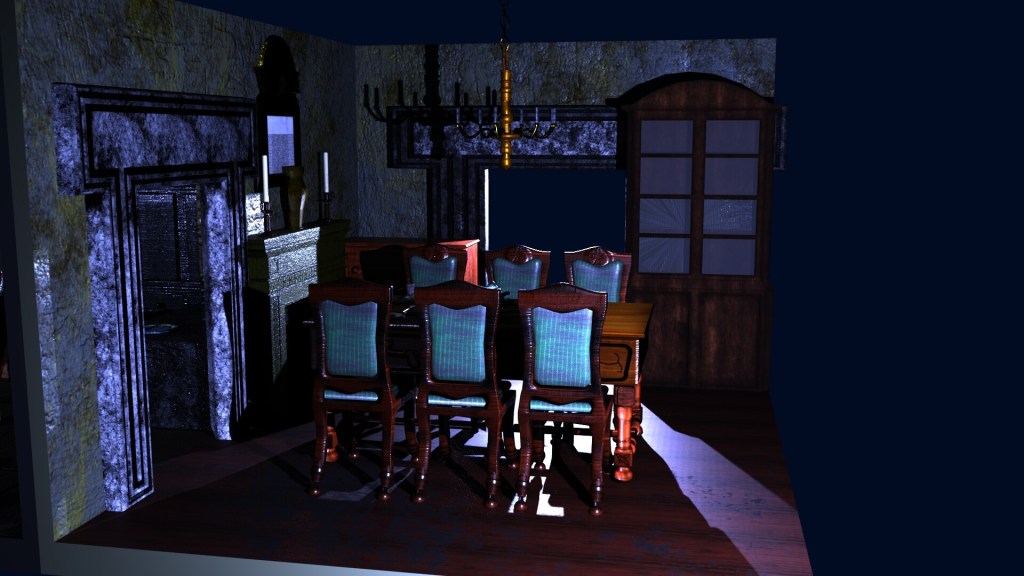


 Jarath's Development portfolio